
Ask one confidential question at a time with Pulse
One short question at a time, on Home or in Slack, who sees the answers, and how administrators run it.
Everyone using Shuffl
Read as MarkdownAll guides as textAgent documentation index
Have your agent do thisPaste the prompt into Claude Code, Cursor or another agent. It follows this guide over MCP and asks before it changes anything others will see.Show the promptHide the prompt
Help me with "Ask one confidential question at a time with Pulse" in my Shuffl workspace.

1. Read the guide: https://shuffl-rebuild.vercel.app/docs/markdown/pulse
2. Add Shuffl's MCP server: https://shuffl-rebuild.vercel.app/api/mcp
   Claude Code: claude mcp add --transport http shuffl https://shuffl-rebuild.vercel.app/api/mcp
   When the browser opens, choose my workspace and allow the access the guide needs.
3. Work through the steps in order: What employees see; For administrators; Start from a question set; Questions Mello suggests; Acting on results; Reminders. Do what you can over MCP and tell me which steps only I can do in the browser or in Slack.

Show me what you will change and who it affects, and wait for my yes before publishing, inviting or sending anything.
App links open your signed-in workspace. Check the selected workspace before making changes.
What employees see
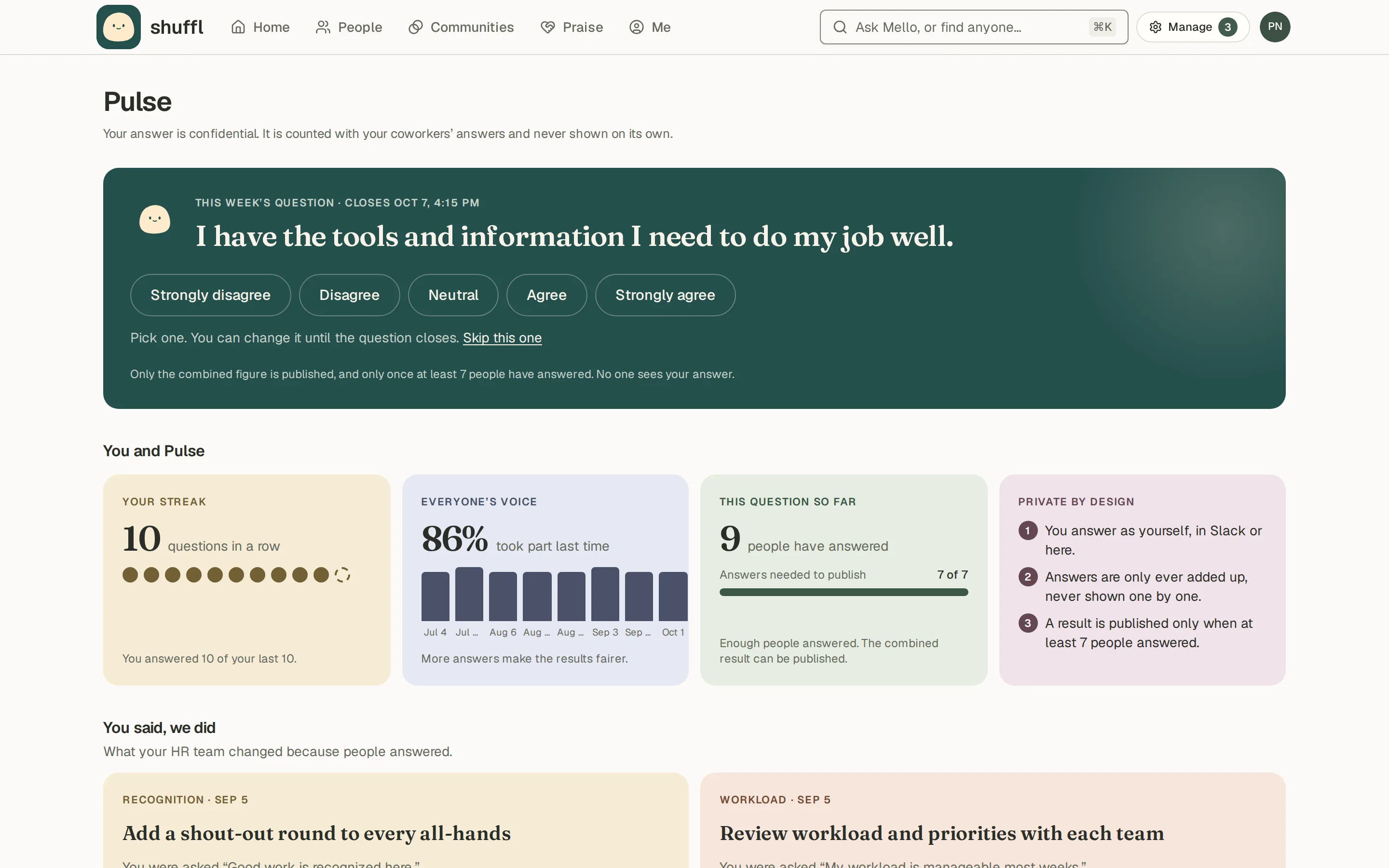
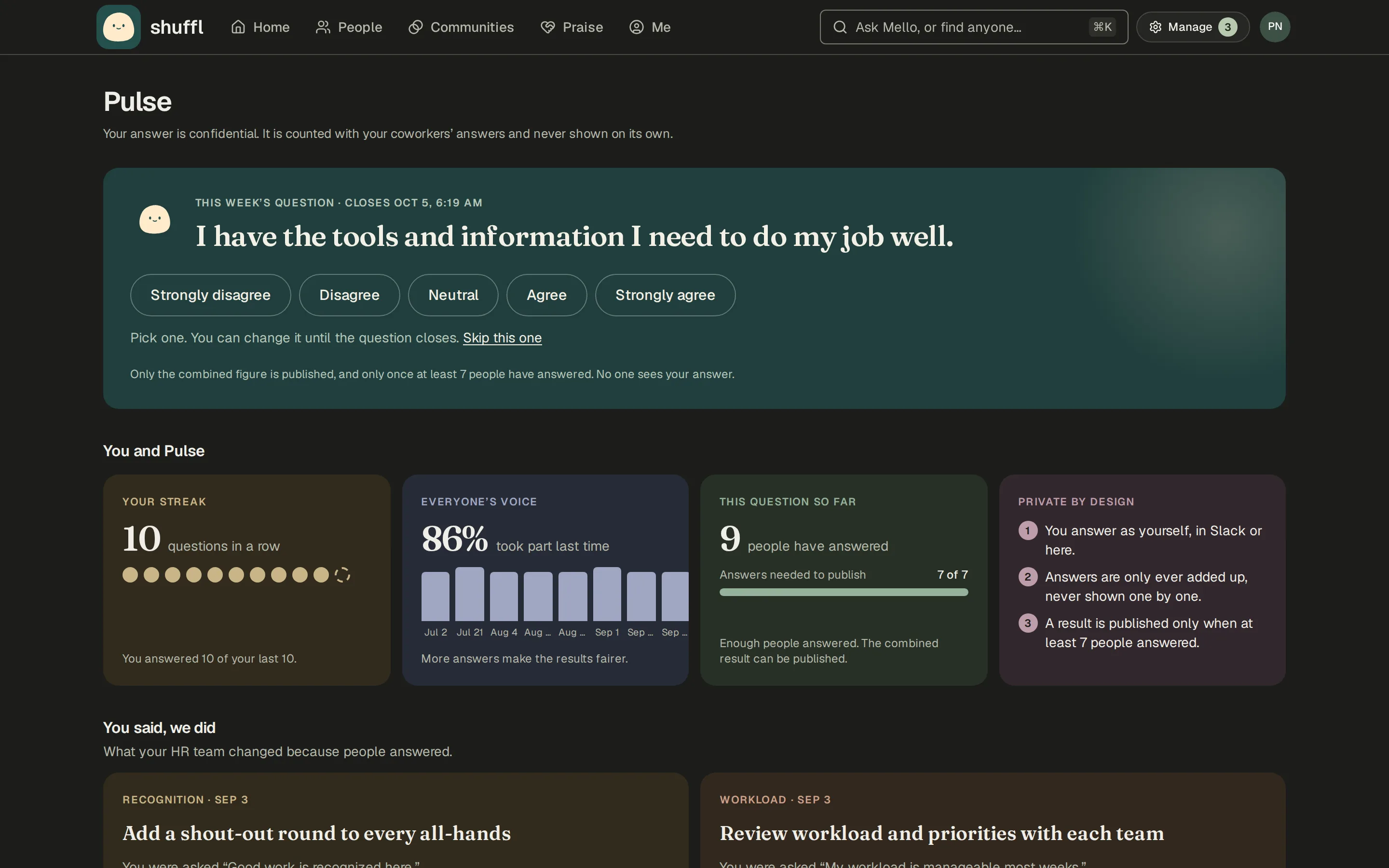
- Tap an answer: Strongly disagree to Strongly agree, Yes or No, 1 to 5, or 0 to 10 for eNPS. The message changes to Thanks, recorded and never shows which answer you chose.
- Change your mind with Change answer until the question closes, 48 hours after it opened or when the next one opens. Answer on Home or in Slack and the other one shows it too. After that it reads This one’s closed and shows the share of the company that answered.
- Choose Skip this one to skip. A skip is not an answer and is not reported.
- Choose Need help with this? on any question to open a conversation with Mello or a private request to HR under your own name. It carries no question, answer or survey reference.
Mello asks one short question a few times a week, on the days your workspace chose. It appears on Home as Today’s question and in Slack as Quick one from Mello · 10 seconds · confidential, and again on the Shuffl app’s Home tab in Slack until you answer; without a linked Slack account you get it by email.
Before your first question, Mello sends the notice in Who sees what, once.
Between questions, Pulse says No question open right now and when the next one goes out, with how many people answered the last one. Home shows the same as one line, Next Pulse question, with the day and time.
ShufflAPP
Who sees what
This is the notice every employee reads before their first question: Your answers are confidential, not anonymous: HR sees totals for groups of 7 or more people, never your answer or your name next to one. You can skip any question, and skipping tells nobody anything.
Confidential, not anonymous means Shuffl knows who was asked and whether they answered, so it can count participation. What was answered is stored separately under a token, and no role, export, report or agent can read it.
A total is published only when 7 or more distinct people answered that question. Below that, HR sees Too few and the participation share, nothing else. Results are frozen when the question closes.
HR can also see results by department, team, managers and individual contributors, and tenure, each under the same floor. When a small group is hidden, enough others are hidden with it that nobody can subtract their way to it.
Slack keeps its own copy of the direct message under your workspace’s retention and export settings. The question text is not confidential; the tap is, and it travels only to Shuffl.
For administrators
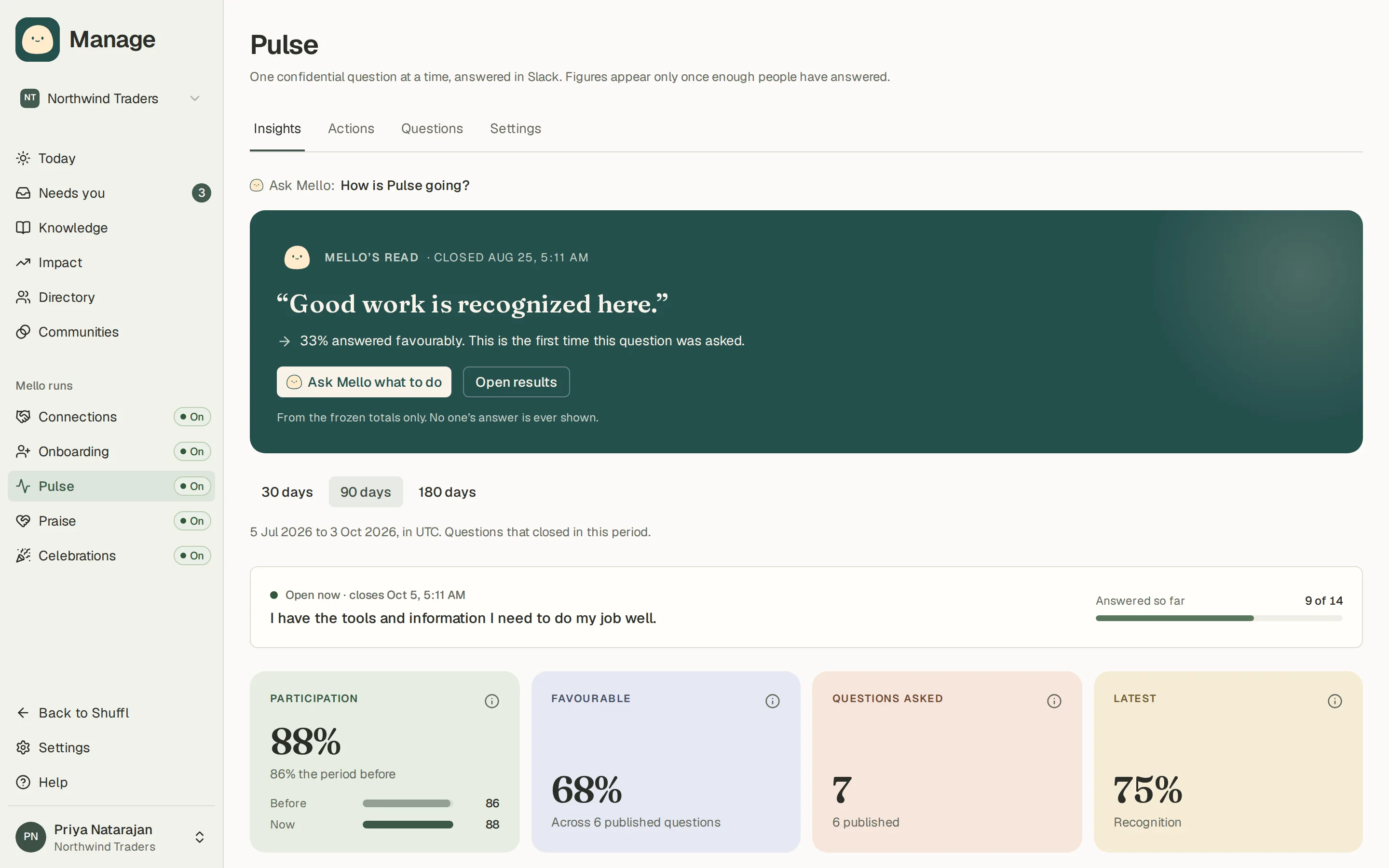
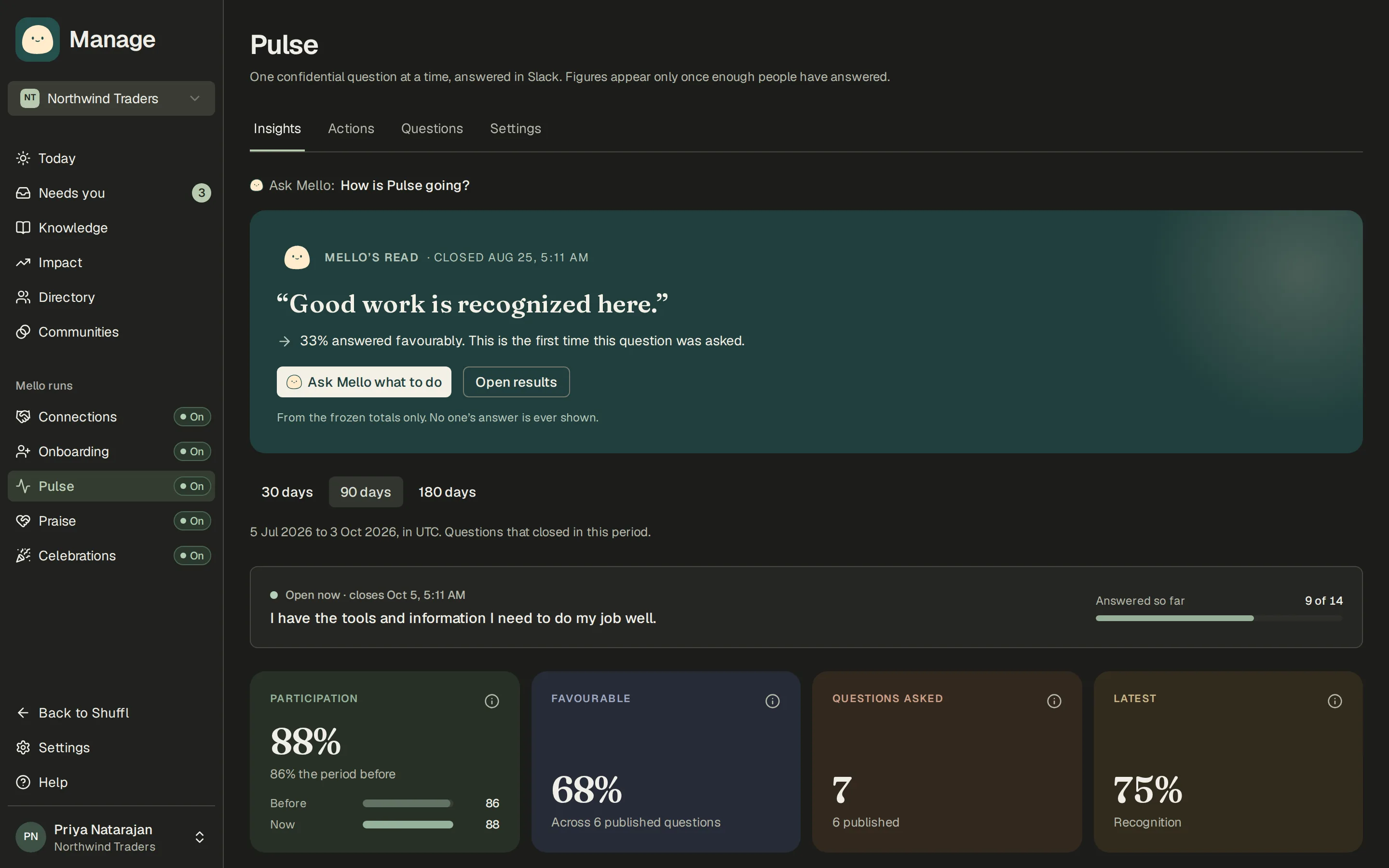
- In Manage, open Pulse. Insights shows participation, the favourable share, eNPS, results by driver, by week and by group, and each closed question. Questions holds the question bank, and you own the wording. Settings holds the cadence, the reporting floor and the AI switch. Before the first question closes, Insights shows What you’ll see after the first question closes: example figures and an example read from Mello, so you know what is coming.
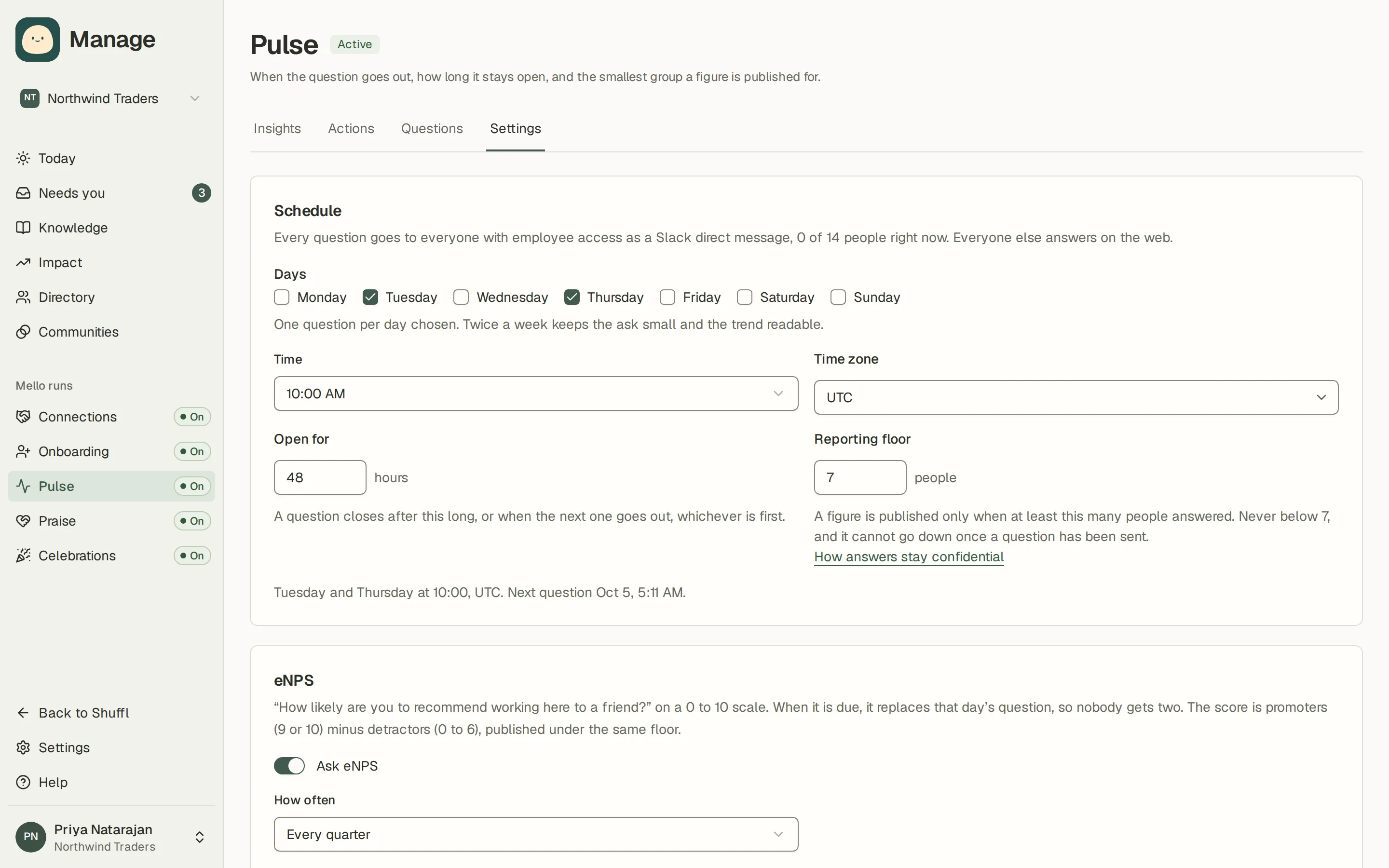
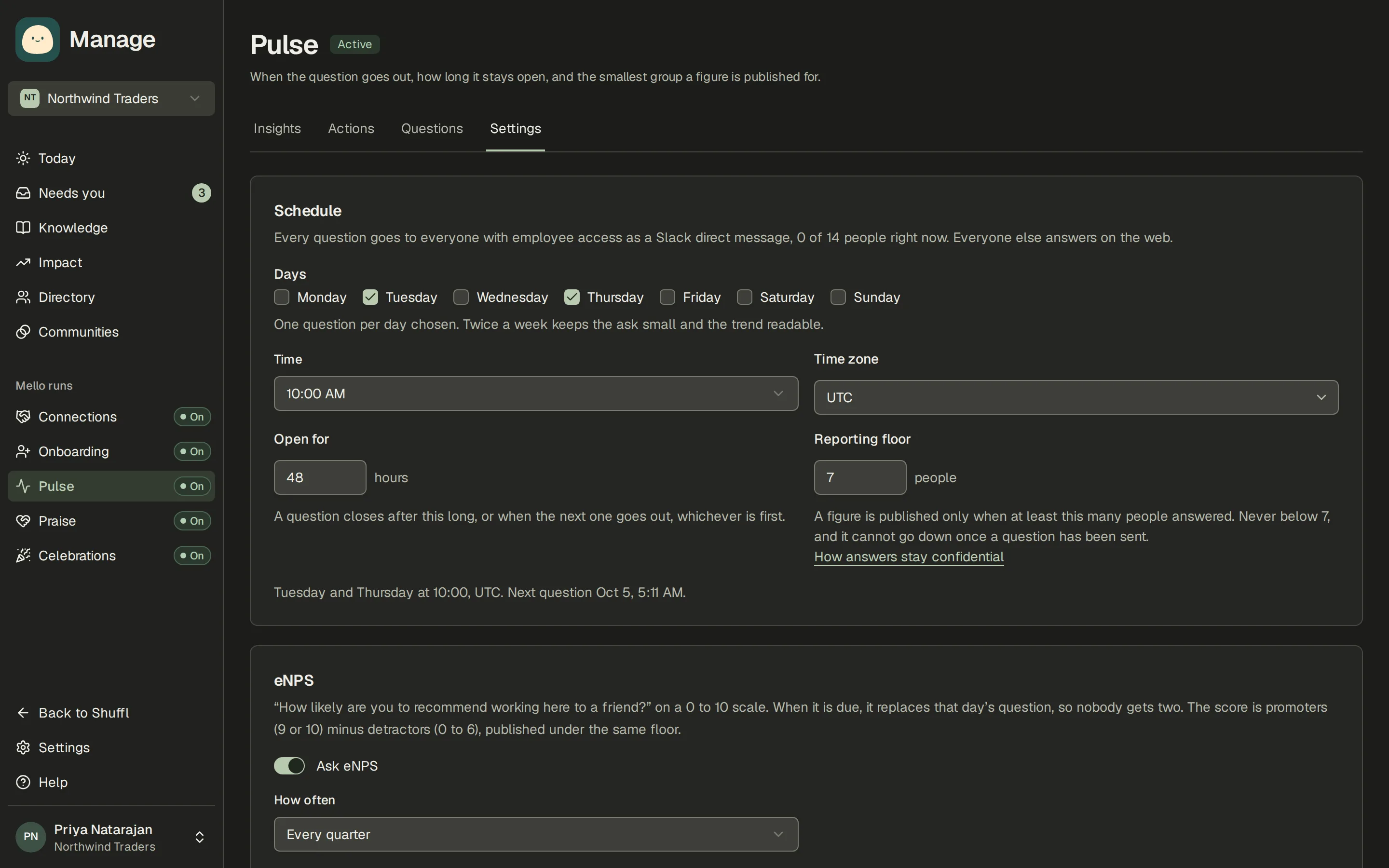
- Choose Start pulse. Then choose the send days and time. Tuesday and Thursday at 10:00 is the default; every weekday is available. A question stays open for 48 hours or until the next one opens.
- Check the reporting floor. It starts at 7 people and can only go up. Raising it applies to every question from the next send.
- To aim a question at part of the company, choose Set audience on Questions and pick departments, teams, managers or individual contributors. The picker warns when the audience is under the floor, because then the answers are never shown. eNPS always goes to everyone.
- When a question closes, every administrator gets Pulse results are in, in Slack or by email: the result, what changed since it was last asked, the widest gap between departments or teams, and buttons to open the result or ask Mello what to do. The same read sits at the top of Insights. A withheld result only says it was withheld. Turn it off under Pulse results in your notification settings.
- Decide whether Mello may work with results. When Summarise trends with AI is on, Mello reads the published totals, never an answer, to say what moved and suggest what to ask next. Turn it off and the numbers stay.
ShufflAPP
Pulse results are in
Start from a question set
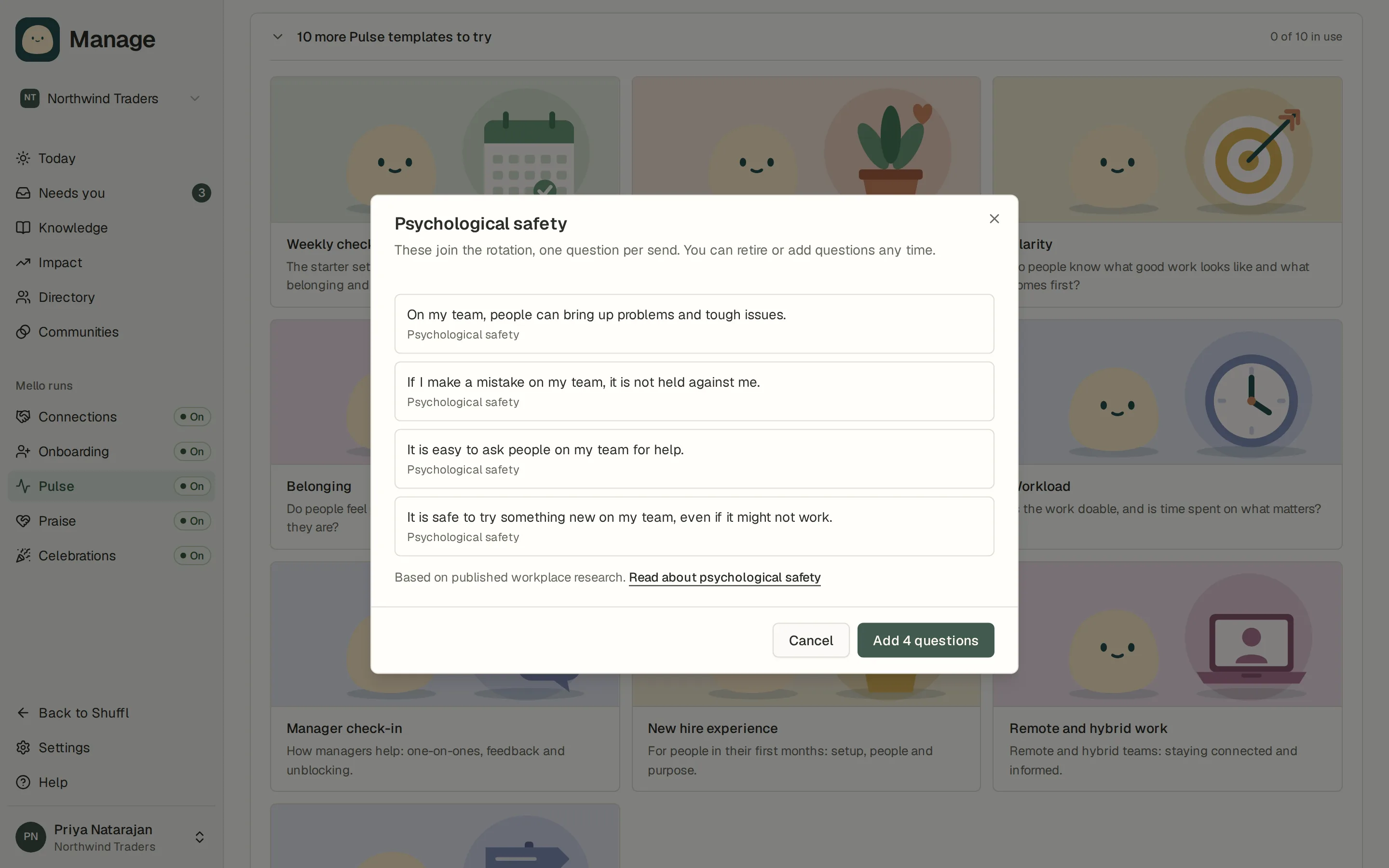
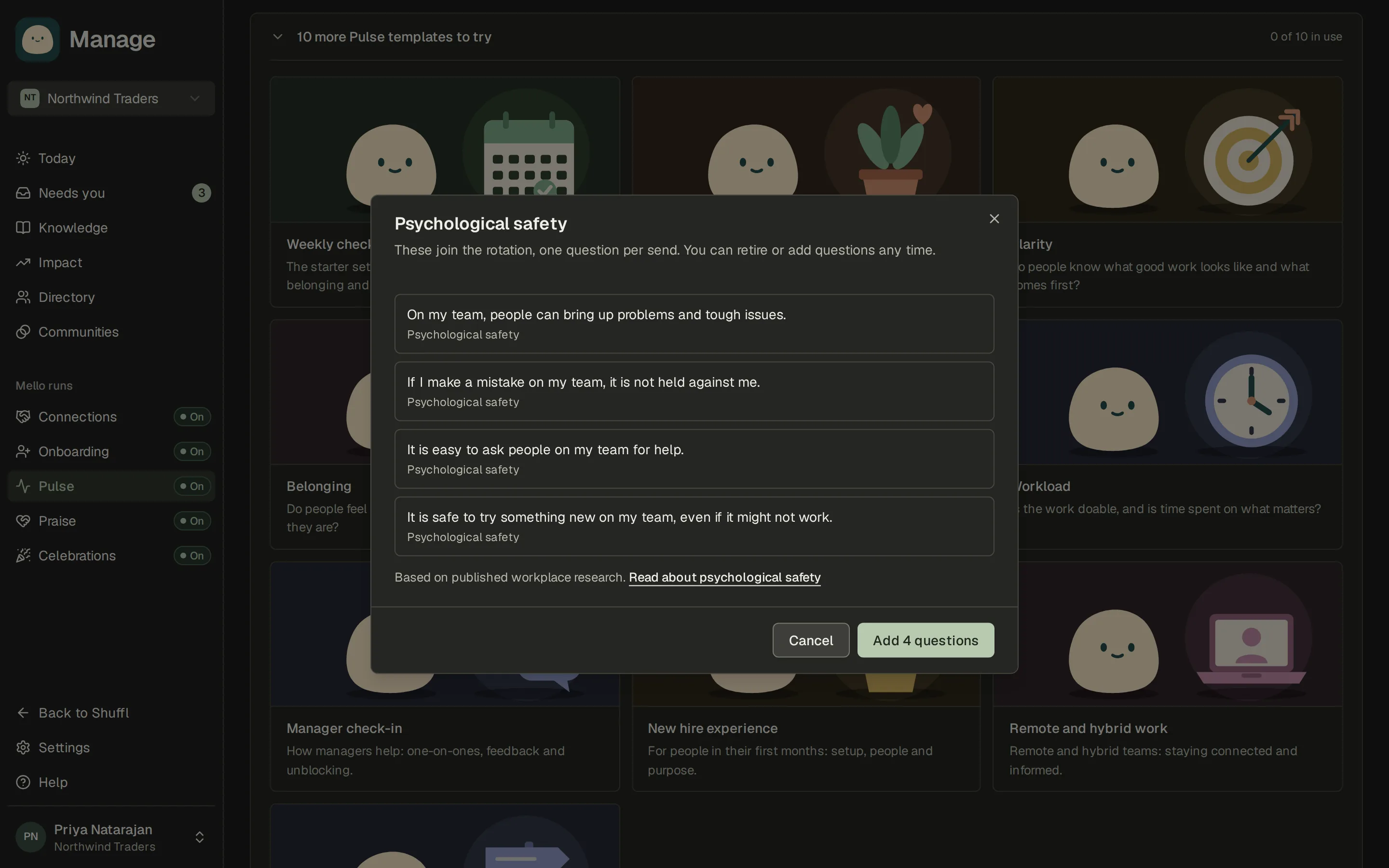
- Open Pulse in Manage, then Questions. Once you have questions, the sets sit in a closed list that reads, for example, 10 more Pulse templates to try. Open it to see them.
- Choose a set to preview its questions and the driver each one measures.
- Choose Add N questions. They join the rotation, one per send. Reword or retire any of them later.
A new workspace opens Questions on What should Pulse ask about? with ten question sets: Weekly check-in, Wellbeing, Clarity, Belonging, Psychological safety, Workload, Manager check-in, New hire experience, Remote and hybrid work, and Through a change. Choose Write your own to start from a blank question instead.
Clarity, Belonging, Psychological safety and Workload are based on published workplace research, in our own short wording about recent weeks. Each links to a glossary page that explains the idea. Psychological safety is its own driver, so Insights reports it apart from the others.
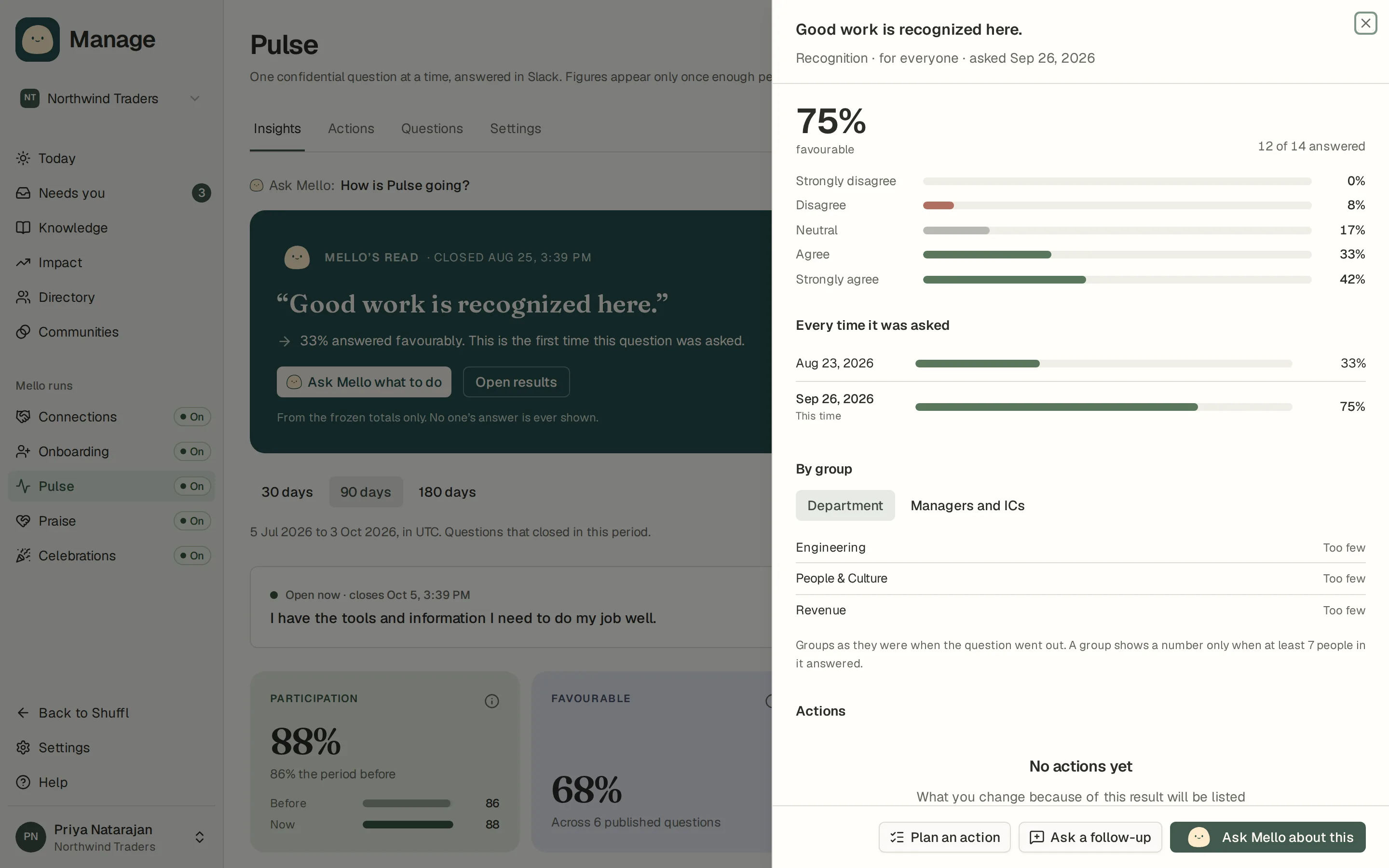
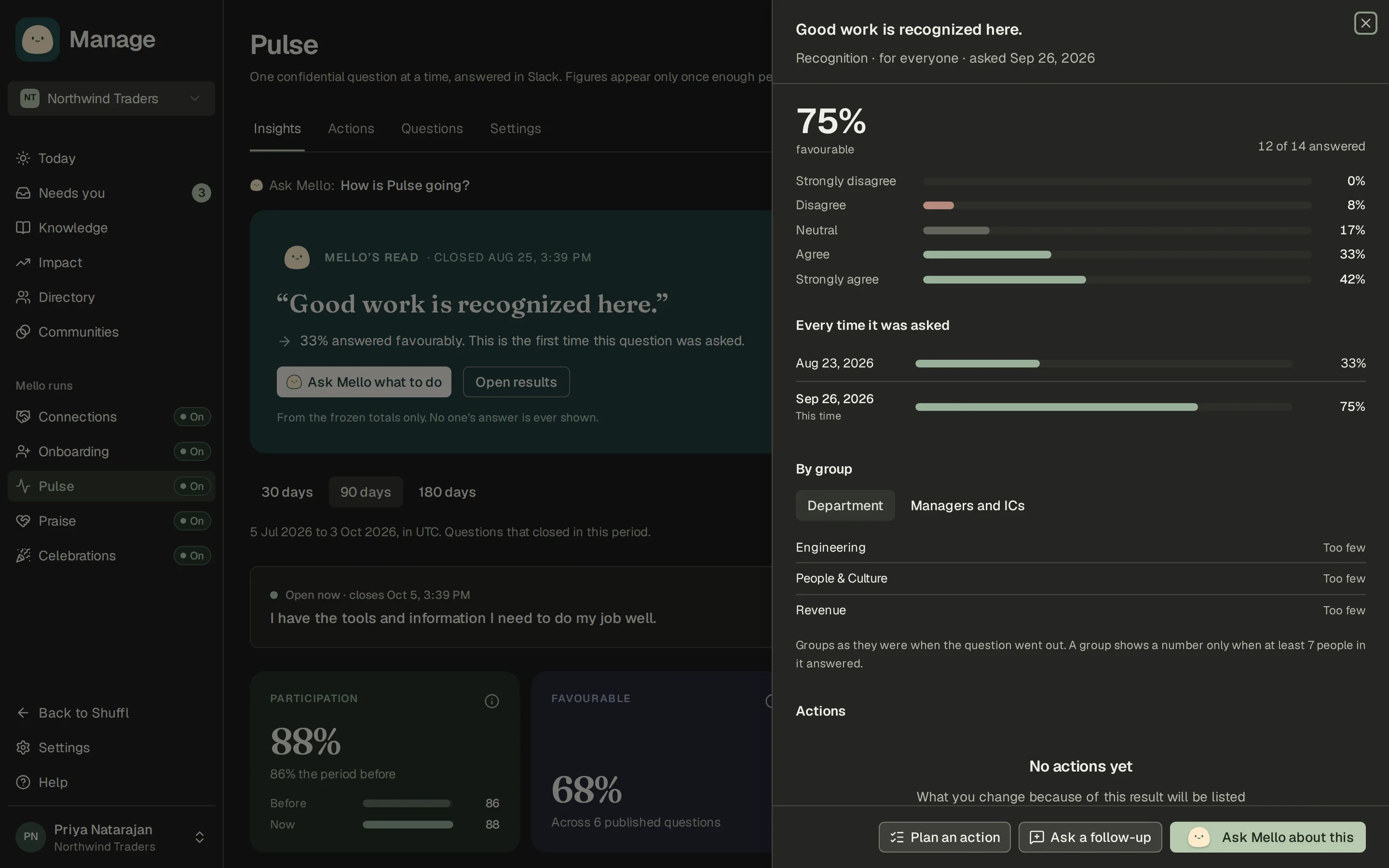
Open one question
On Insights, choose a closed question to open it in a side panel. The address ends in ?question= and the question’s id, so you can share the link with another administrator.
The panel shows the result and how many answered, the spread of answers from lowest to highest, Every time it was asked with the result of each earlier send, and By group, where Split by switches between Department, Team, Managers and ICs, and Tenure. Groups are frozen as they were when the question went out. Actions is where what you change because of the result will be listed.
Plan an action starts an action from this result. Ask Mello about this opens Chat with the question, so Mello can read the result and its earlier sends and suggest what to do. Ask a follow-up asks Mello for one more question to understand the result better.
Questions Mello suggests
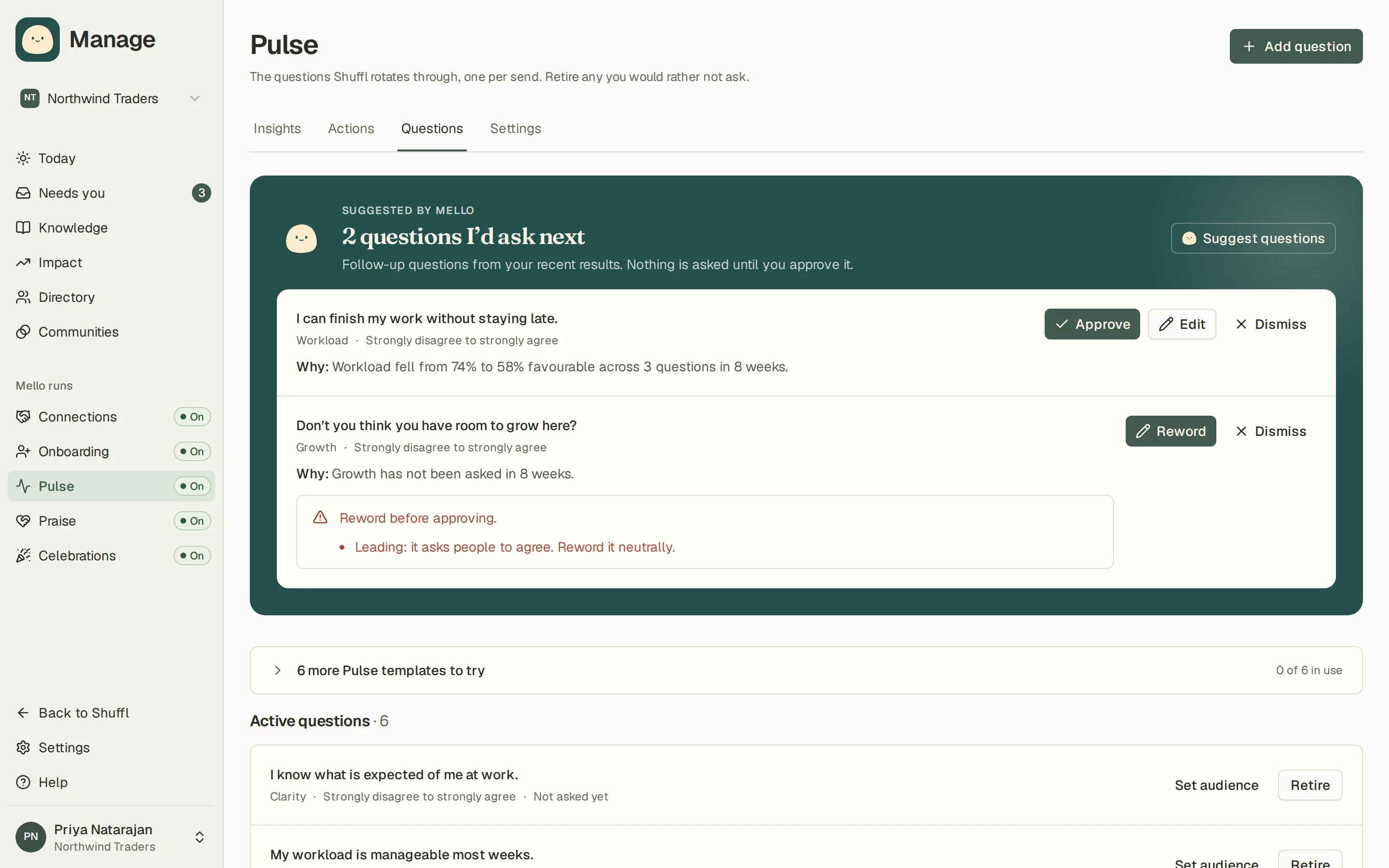
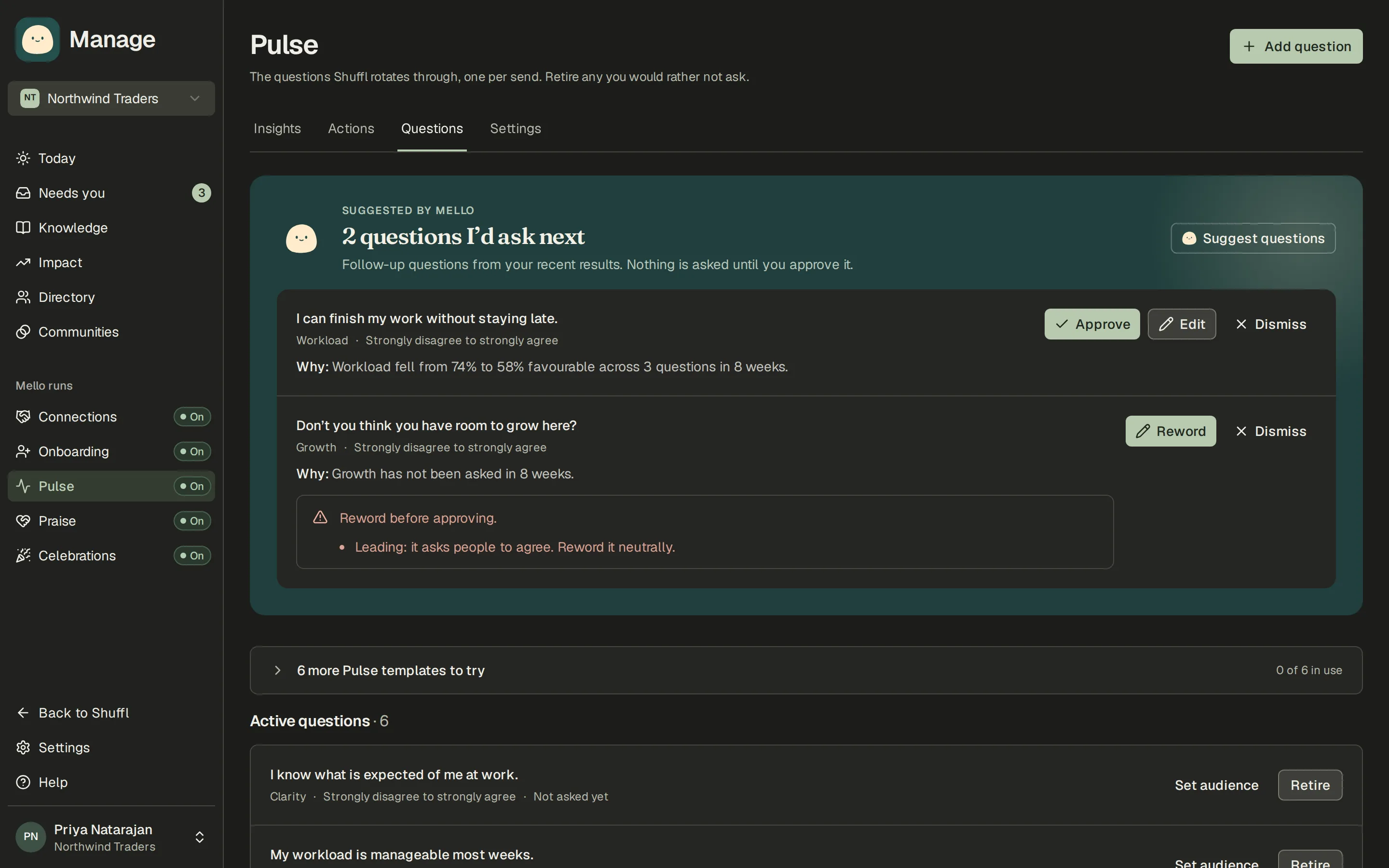
- Open Questions. Suggested by Mello lists what is waiting. Choose Approve to add a question to the front of the rotation, worded exactly as shown. Nothing is sent until you approve.
- Choose Edit to reword it first, or Dismiss to drop it. Mello does not suggest the same wording again.
- Every suggestion is checked for leading wording, personal topics such as health, religion or pay, and two questions in one. A suggestion that fails says why and has to be reworded before it can be approved.
- Choose Suggest questions to ask for up to three now, optionally about a topic. You can also ask Mello in Chat or Slack, for example “draft three Pulse questions about onboarding clarity”. They arrive as suggestions, never as live questions.
With the AI switch on, Mello suggests up to two follow-up questions a week, each with one line on why: Workload fell from 72% to 58% favourable, or Growth has not been asked in 8 weeks. Owners and administrators get each suggestion in Slack, or by email, with Approve and Dismiss.
Mello reads the published totals of the last eight weeks and the wording already asked. It never reads an answer, a group under the floor or a name, and every number in its reason comes from those totals.
eNPS
eNPS asks How likely are you to recommend working here to a friend? on a 0 to 10 scale, every quarter by default. When it is due, it replaces that day’s question, so nobody gets two in one day. Change how often (every month, every quarter or twice a year) or turn it off under eNPS in Pulse settings.
People who answer 9 or 10 are promoters, 7 or 8 passives, 0 to 6 detractors. The score is the promoter share minus the detractor share, from -100 to +100. It follows the same reporting floor as every other question. Insights shows the latest score, how it split and the trend across the last eight eNPS questions.
Acting on results
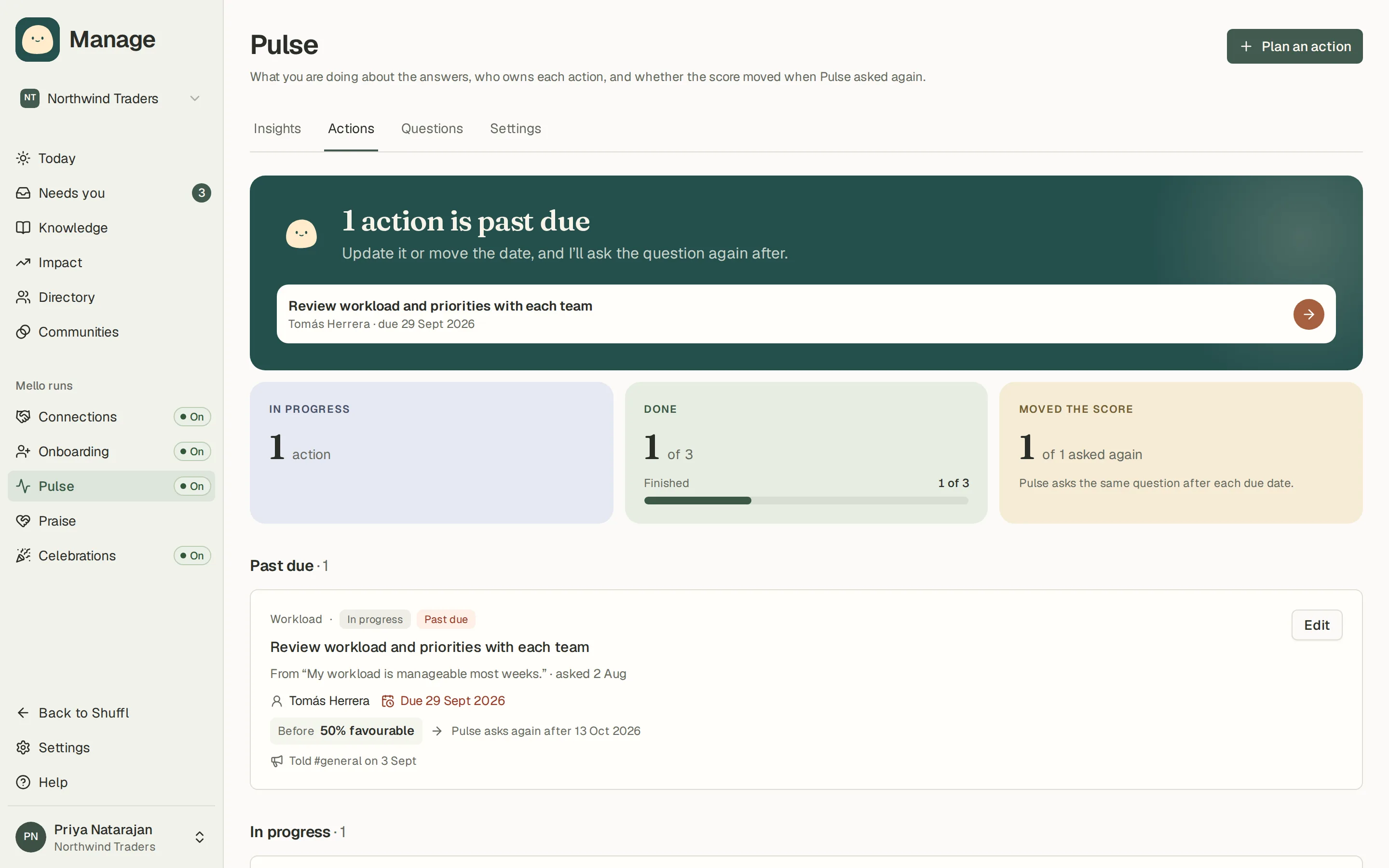
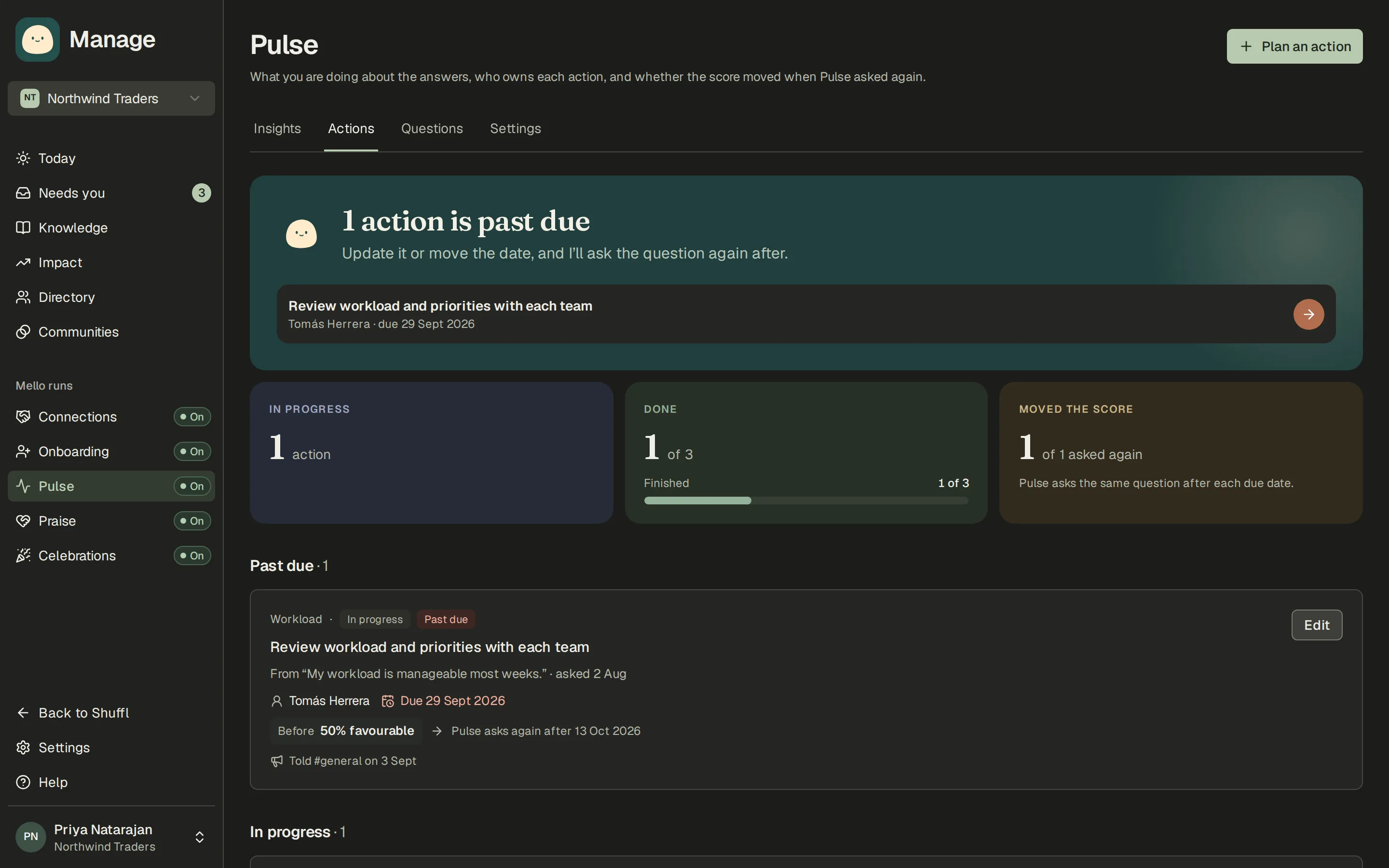
- On Insights, open a closed question and choose Plan an action, or open Actions and choose Plan an action.
- Write the action, or choose Draft with Mello. Pick an owner and a due date. Leave Ask this question again on to see if it helped.
- Choose Tell people when you are ready. Edit the draft, pick a channel, choose whether to message everyone who was asked, and post.
- Mark the action Done when it is. Mello can also list, plan and update actions when you ask in Chat.
An action is what you will do about a closed question: a title, an owner and a due date. Actions past their due date show in Needs you and on Home until someone marks them done or dropped.
Pulse asks the same question again on the first send two weeks after the due date, to the same audience, and the action shows the result before and after. Both sides follow the reporting floor; a side with too few answers says so and no change is shown.
Tell people sends one "You said, we did" message, once, to a Slack channel Shuffl is in and to everyone who was asked, by Slack DM or email. Mello drafts it from the published result and the action, never from answers, and you edit it before it goes. A retry never sends it twice.
ShufflAPP
Reminders
- In Pulse settings, turn on Send Pulse reminders and choose when: The next day, or Before it closes. The send preview above says that people who haven’t answered get one reminder per question.
- Each person can follow the team’s choice, pick the other option or turn reminders off under Pulse check-ins in their notification settings. Their choice wins.
When reminders are on, anyone who hasn’t answered or skipped the open question gets one reminder for it, in Slack or by email, on a weekday in their working hours. In Slack, Mello sends the question again with its answer buttons and the first message points down to it, so the buttons stay in one place.
Answering, skipping or choosing Need help with this? means no reminder comes. Nobody but you sees that you were reminded, and the reminder is decided from who was sent the question, never from an answer.
ShufflAPP
What is never built
Pulse has no individual scores, no manager dashboards, no free text and no benchmarks against other companies.
Nobody is ranked, scored or flagged from their answers, and a pulse answer never appears in a chat with Mello.
Retention
Answers are deleted 90 days after the question closes. Reports, the frozen totals above the floor, are kept so you can compare over time.
Slack keeps its own copy of the direct message under your workspace’s retention settings. Deleting an answer in Shuffl does not remove the message from Slack.