Praise and badges
How Shuffl reads your praise channel in Slack, what you see and control, badges people earn, and how administrators set it up.
Everyone using Shuffl
Read as MarkdownAll guides as textAgent documentation index
Have your agent do thisPaste the prompt into Claude Code, Cursor or another agent. It follows this guide over MCP and asks before it changes anything others will see.Show the promptHide the prompt
Help me with "Praise and badges" in my Shuffl workspace.

1. Read the guide: https://shuffl-rebuild.vercel.app/docs/markdown/praise
2. Add Shuffl's MCP server: https://shuffl-rebuild.vercel.app/api/mcp
   Claude Code: claude mcp add --transport http shuffl https://shuffl-rebuild.vercel.app/api/mcp
   When the browser opens, choose my workspace and allow the access the guide needs.
3. Work through the steps in order: Praise you received; Reminders to thank people; Badges; For administrators. Do what you can over MCP and tell me which steps only I can do in the browser or in Slack.

Show me what you will change and who it affects, and wait for my yes before publishing, inviting or sending anything.
App links open your signed-in workspace. Check the selected workspace before making changes.
Giving praise
Thank someone the way you already do: post in your company’s praise channel, like #kudos, and @mention them. You never leave Slack.
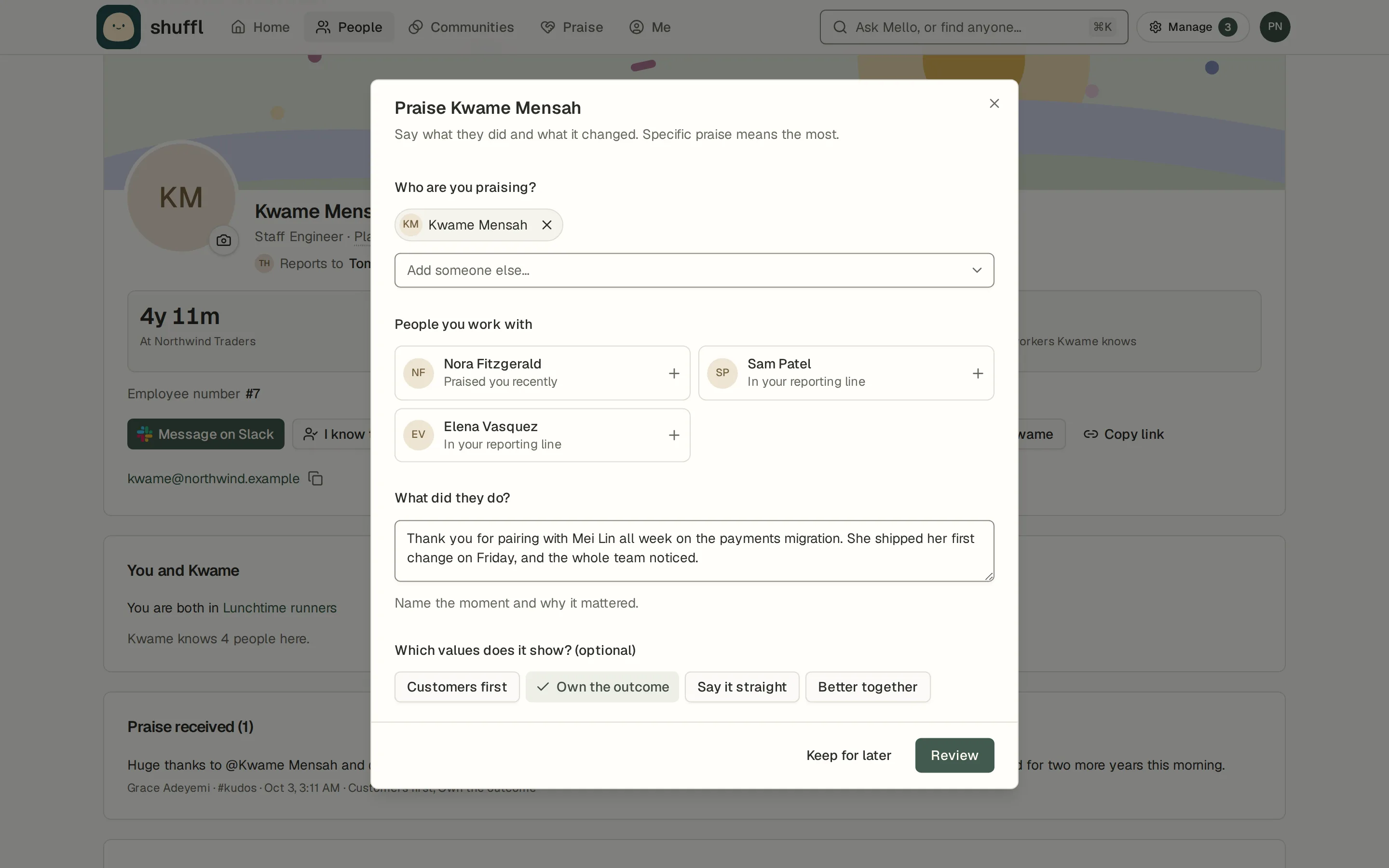
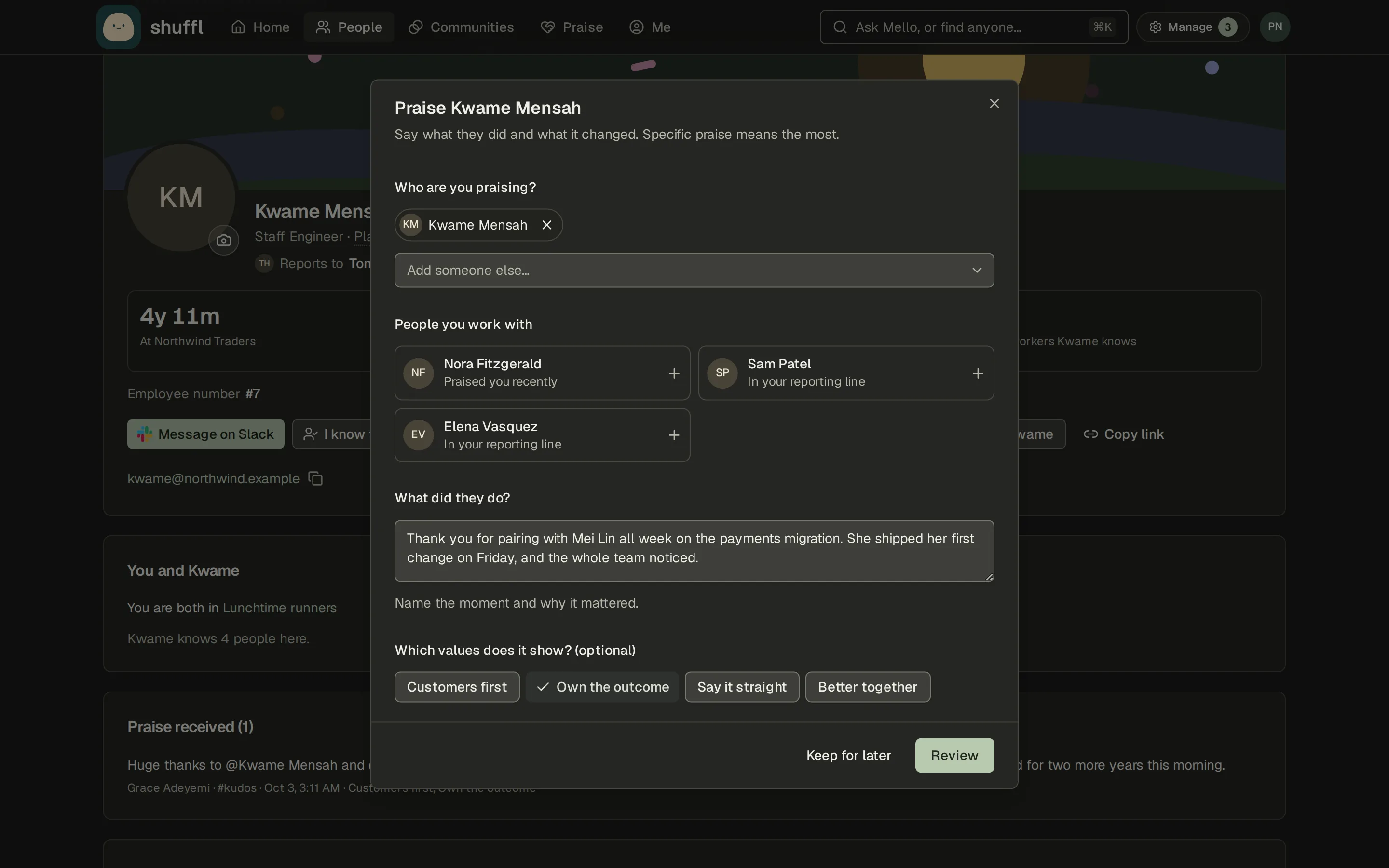
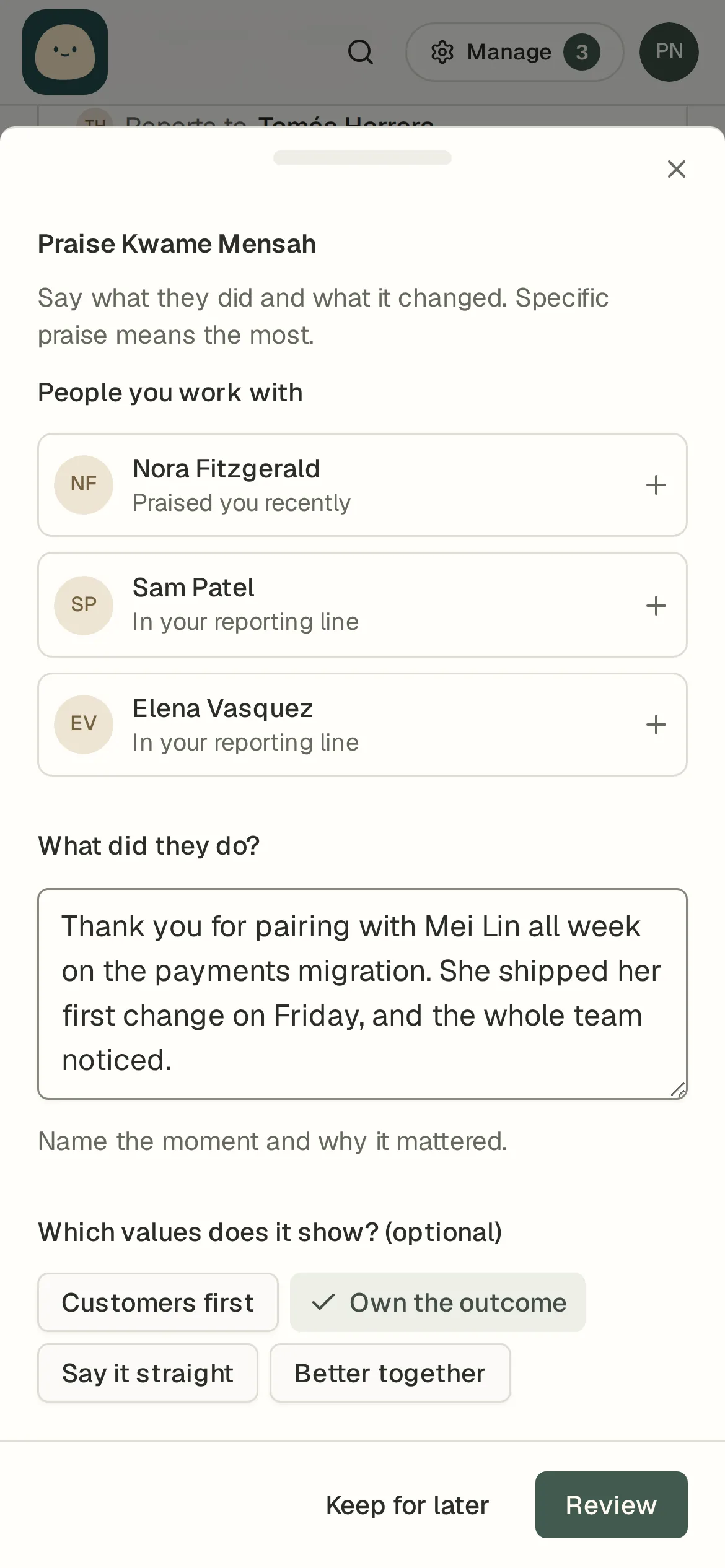
Or praise them from Shuffl. Choose Praise on a coworker’s profile, or Give praise under Praise, and they are already picked. Shuffl suggests people you work with, offers a few starters if you’re stuck, and lets you tag the values it shows. Review what the channel will see, then post. Shuffl posts it in the praise channel with your name and theirs, and a draft you close waits until you come back.
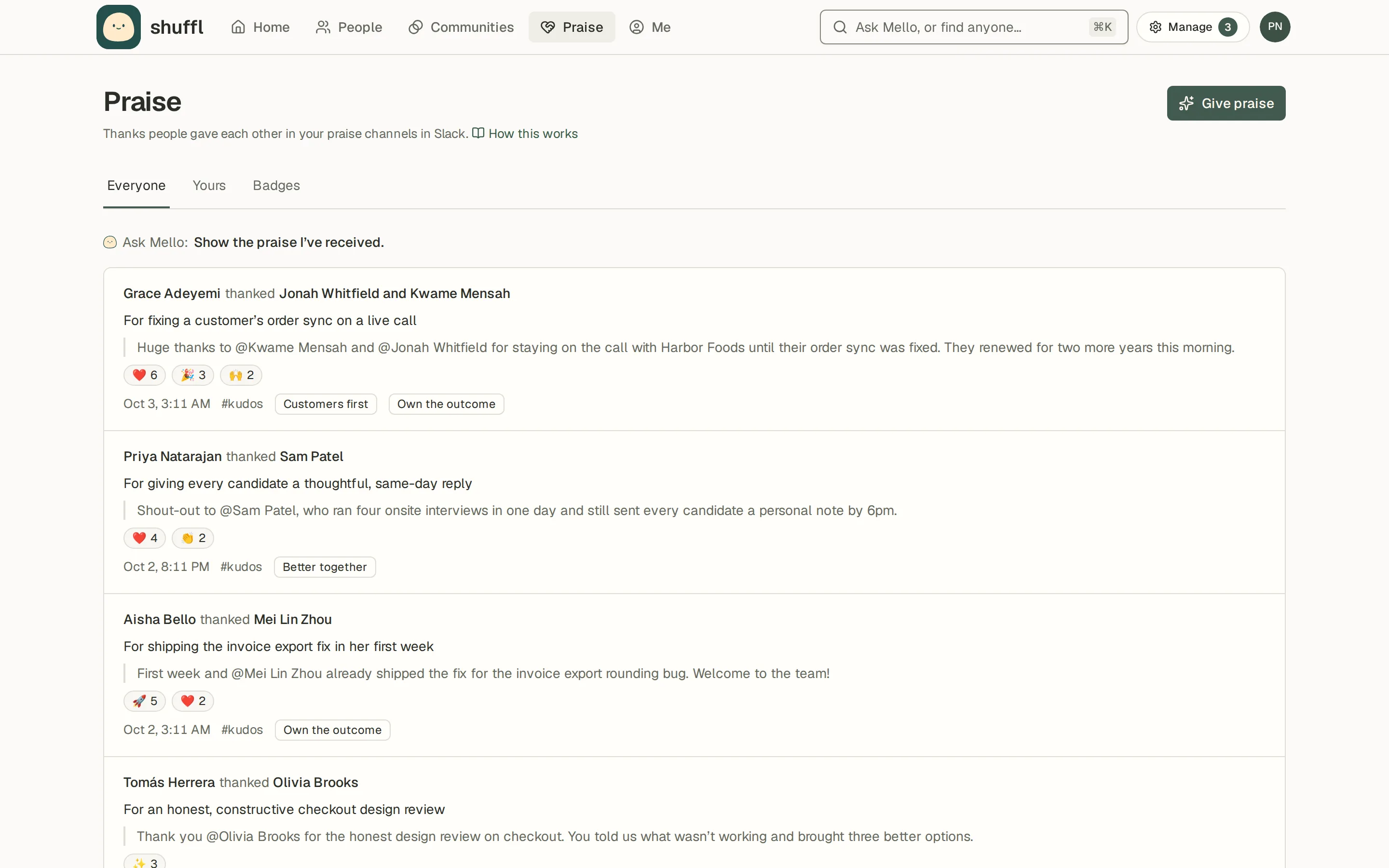
Shuffl reads new top-level messages that mention someone, decides whether each is praise, writes a line about what it was for and tags up to three company values. Thread replies and bot messages are left alone.
When Shuffl records your message as praise, it adds a ❤️ reaction, or whichever emoji your administrator picked, so you know it was captured. Reactions coworkers add in Slack show on the praise in Shuffl as totals.
Edit the message in Slack and Shuffl reads it again. Delete it and it is gone from Shuffl too.
Praise you received
- Choose Hide from profile on anything you would rather not show. It leaves the Everyone feed and stays off your profile.
- Choose Not praise? when Shuffl read a message as praise by mistake. It disappears from Shuffl for everyone; the Slack message stays as it is. The person who gave it and administrators can do the same.
Praise → Yours lists the praise you received and gave, including from private channels. Your totals are shown to you alone. Praise you received also appears on your profile and on Home.
When someone praises you, Mello sends you at most one message a day in Slack. Turn Tell me in Slack off to stop it.
ShufflAPP
Reminders to thank people
- Choose Open #kudos (or your praise channel) to write something, Not now to dismiss it, or Stop these reminders to turn them off.
- Under Praise in your notification settings, follow your team’s choice, pick how often, or turn them off.
When your administrator turns on praise reminders, Mello sends a private Slack note if you haven’t thanked anyone in a while: every 2 weeks, monthly or every 3 months, as your team chose. It points you to the praise channel with a few examples. It never writes or posts praise for you.
It comes on a weekday in your working hours, never on the same day as a Pulse reminder or in the same week as a badge suggestion.
ShufflAPP
Badges
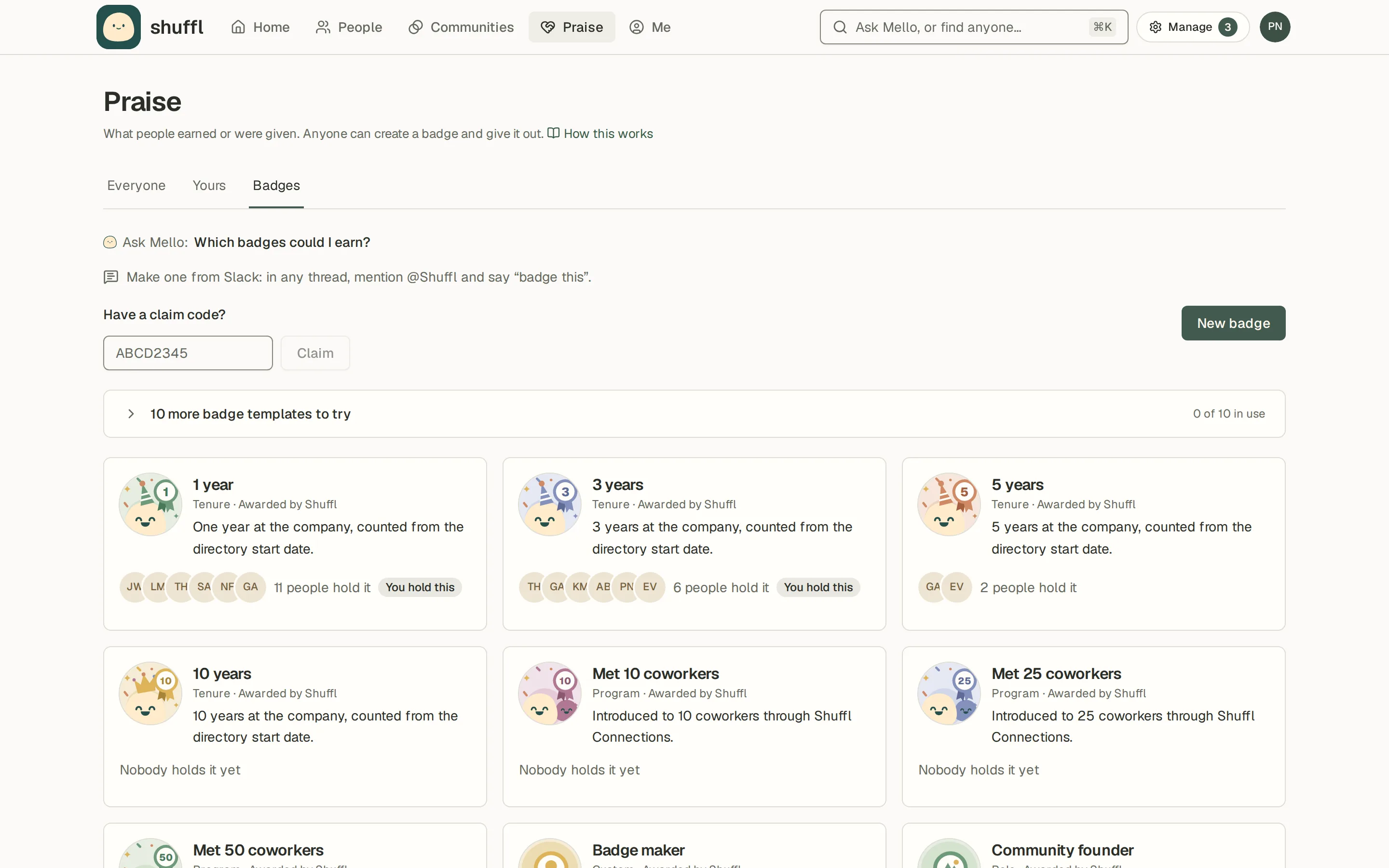
- Choose New badge and start from a template or a blank one. Give it a name, a description and a picture, uploaded or created with AI, and pick its kind: custom, program, release or tenure.
- Choose how people get it: Owners give it, Anyone with the claim code, or Anyone can request it and owners approve. Add owners and, if you want, moderators.
- Give a badge with Give, enter a code under Have a claim code? to claim one, or choose Request and wait for an owner to approve. On a coworker’s profile, Ask for this badge sends the same request. A holder can hide a badge from their profile, and an administrator can hide a badge for everyone.
- In Slack, mention @Shuffl in any thread and say “badge this”. Mello drafts a name from the thread and picks the people in it, in a message only you see. Choose Review badge, change what you like and choose Create badge. Later, say “@Shuffl rename it to …” or “@Shuffl add @name” in the same thread.
- When you thank three or more people in the praise channel, or name coworkers in your launch channel, Shuffl may DM you once to ask if you want a badge for them. It asks at most once a week. Choose Don’t ask again to stop.
A badge is something a person earned or belongs to: a program they completed, a release they shipped, years of tenure or anything your company wants to mark. Badges show on profiles, in the Home feed and on Home’s Badges this week card.
Shuffl gives some badges itself: tenure, coworkers met through Connections, and a first badge for starting a community, making a badge and giving praise in a praise channel.
Your own agent can draw or upload a picture for a badge you own over MCP or the API.
Who sees what
Everyone sees praise from public channels under Praise. Praise from a private channel shows only to the giver and the people thanked.
Administrators see totals only, for groups of 7 or more people: the share thanked, the share who gave praise, praise across departments and which values come up. There are no leaderboards.
For administrators
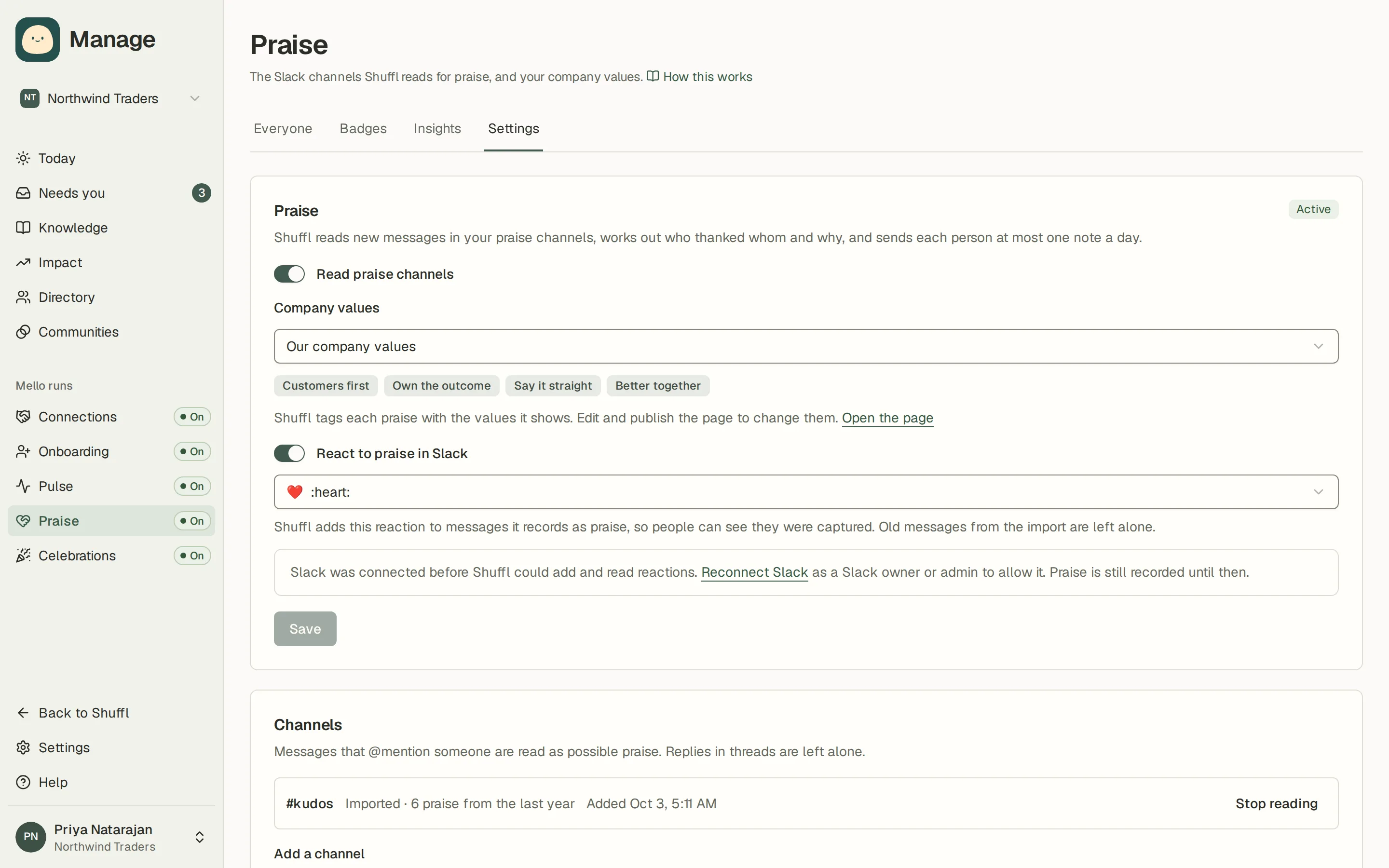
- In Manage, open Praise → Settings and turn on Read praise channels.
- Under Company values, pick the Knowledge page that holds your values, or choose Create a company values page to start one from the template. Mello tags praise with the values on that page.
- Add the channel where people already thank each other, up to five. Shuffl has to be in it: choose Add Shuffl to it for a public channel, or type /invite @Shuffl in a private one. Shuffl brings in the last 12 months of the channel and Mello posts a short hello there, once. Praise that names someone who isn’t in People yet is read again when they are added, and counted without a new reaction or digest.
- Under React to praise in Slack, pick the emoji Shuffl adds to new praise, use one of your workspace’s own, or turn it off. Slack connections made before this was added need a reconnect by a Slack owner or admin.
- Insights shows who is recognized and who gives praise, by week and by department, and which values people praised. Choose Stop reading to stop; praise already read stays until someone takes it out.
- Under Reminders, turn on Send praise reminders and choose how often. People who haven’t thanked anyone in that long get one private note; each person can change it or turn it off. See the message shows what they get.
- Under Praise → Badges, Badge suggestions turns badge offers from group praise on or off and picks the launch channel Shuffl watches, like #launches. Shuffl has to be in that channel. Nothing is made until the person who got the offer says yes.
ShufflAPP