
Workspace settings
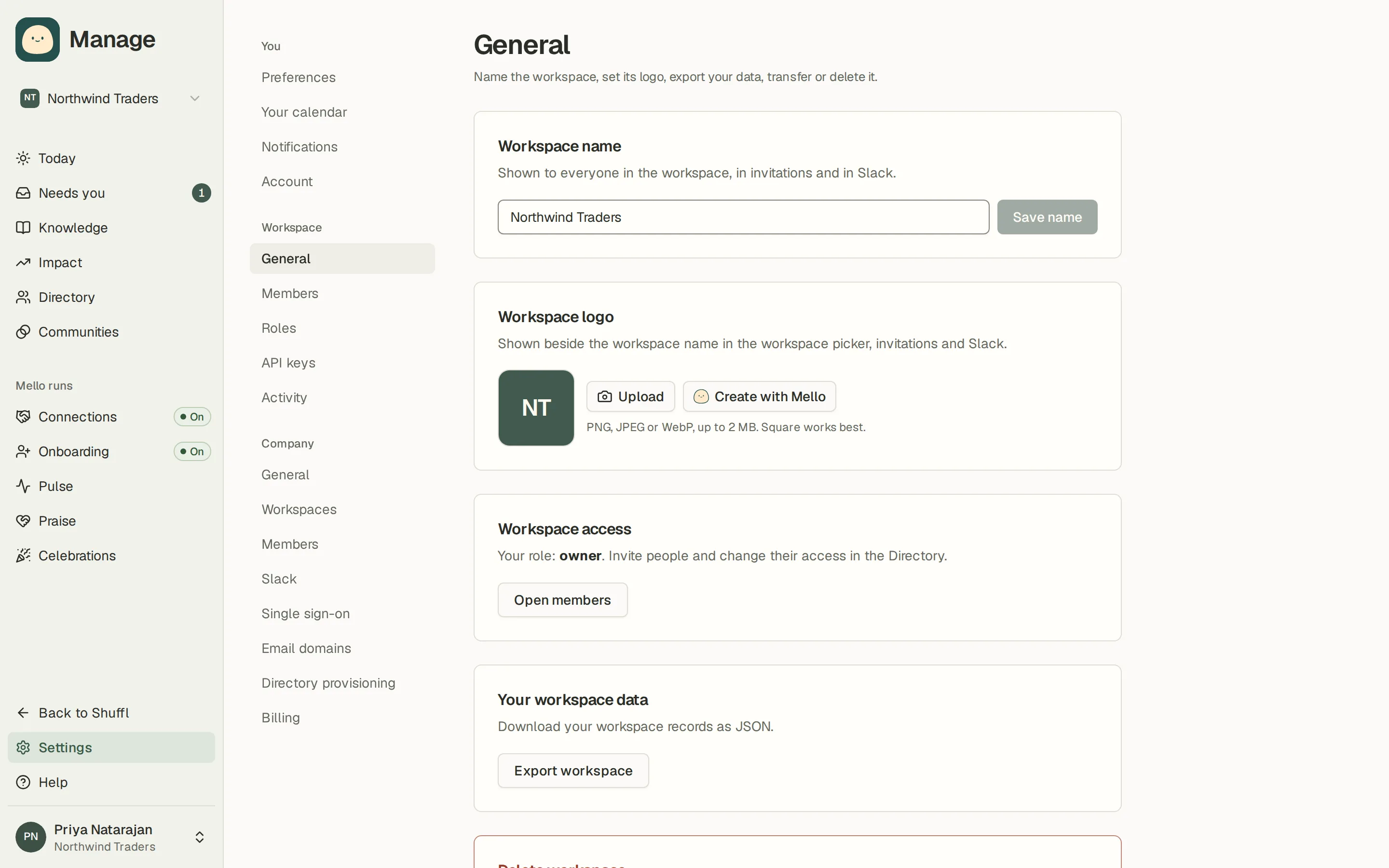
Workspace name and logo, members, roles, API keys, activity, data export and a link to Company settings.
Workspace administrators
Read as MarkdownAll guides as textAgent documentation index
App links open your signed-in workspace. Check the selected workspace before making changes.
General
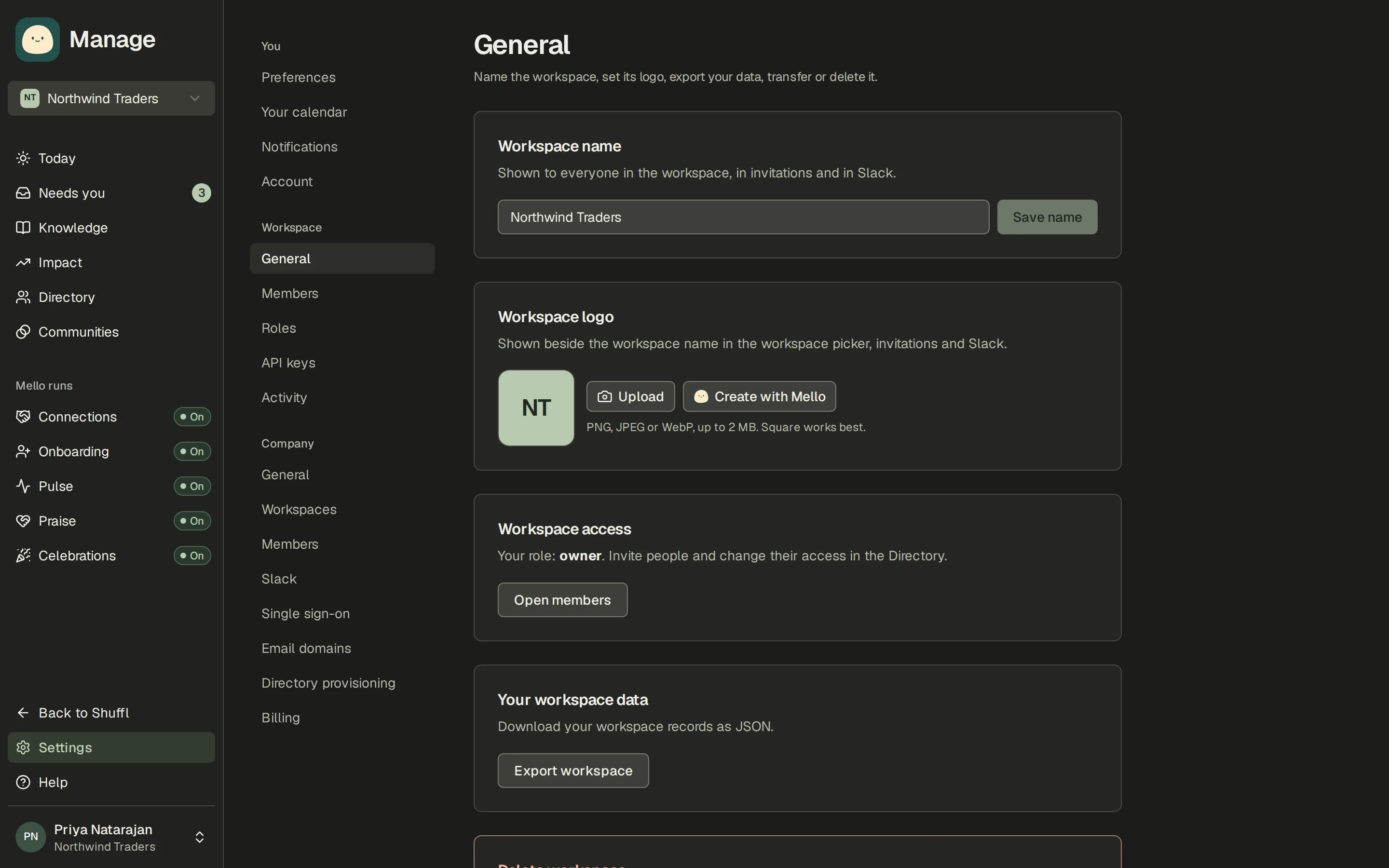
Settings → General renames the workspace and sets a logo, which then shows in the app and on the Slack Home tab. Members opens the Directory, where you invite people and change their access. Slack, single sign-on, email domains, billing and product analytics belong to the company, so they live in the Company group further down the same list.
Export workspace downloads your data as JSON. Company settings holds company ownership. Only a company owner can transfer it to another member. A company owner or administrator can delete a workspace by typing its name. It stays restorable for 30 days. After that, Shuffl permanently erases its data. Company billing and configuration stay in place.
Roles
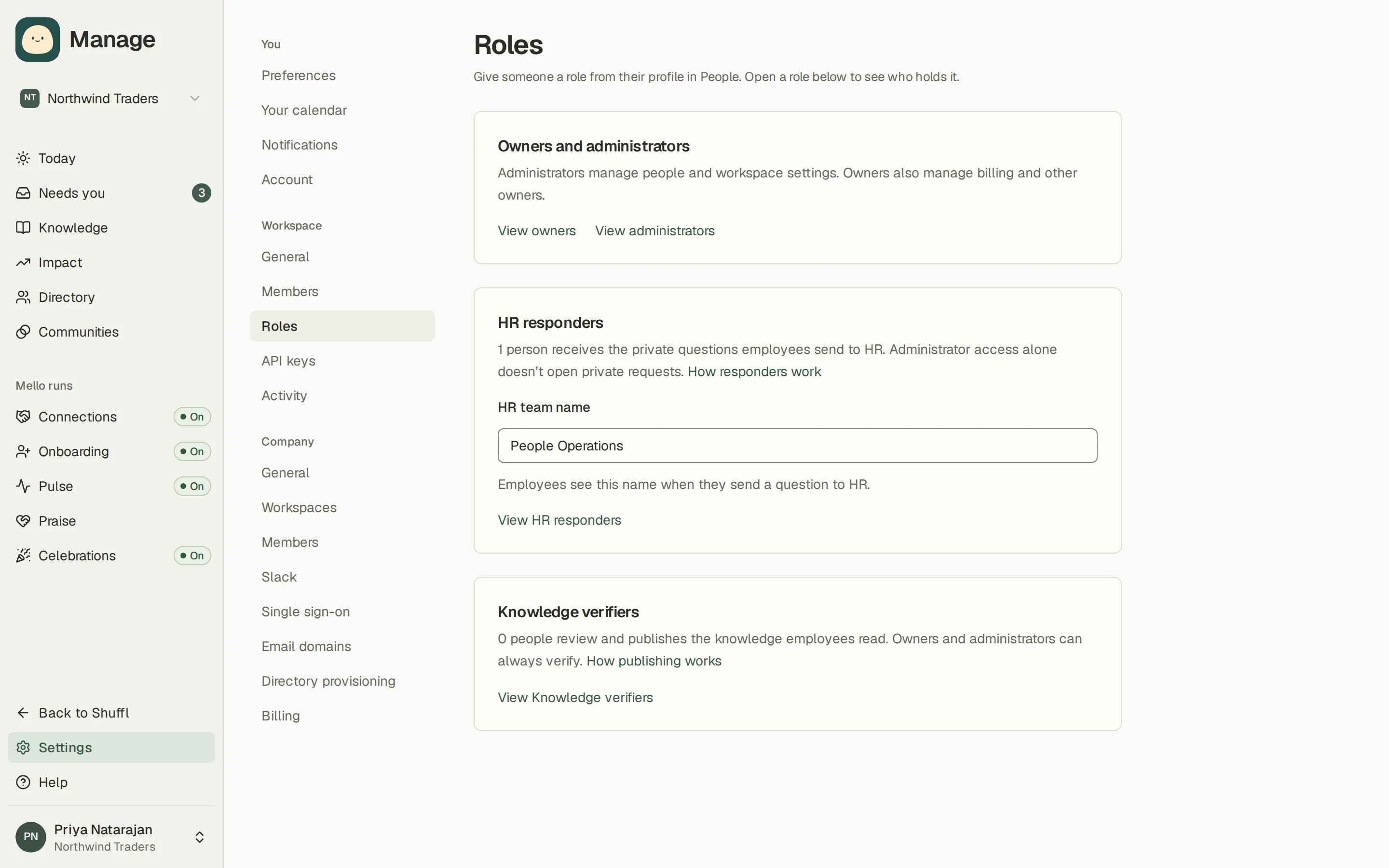
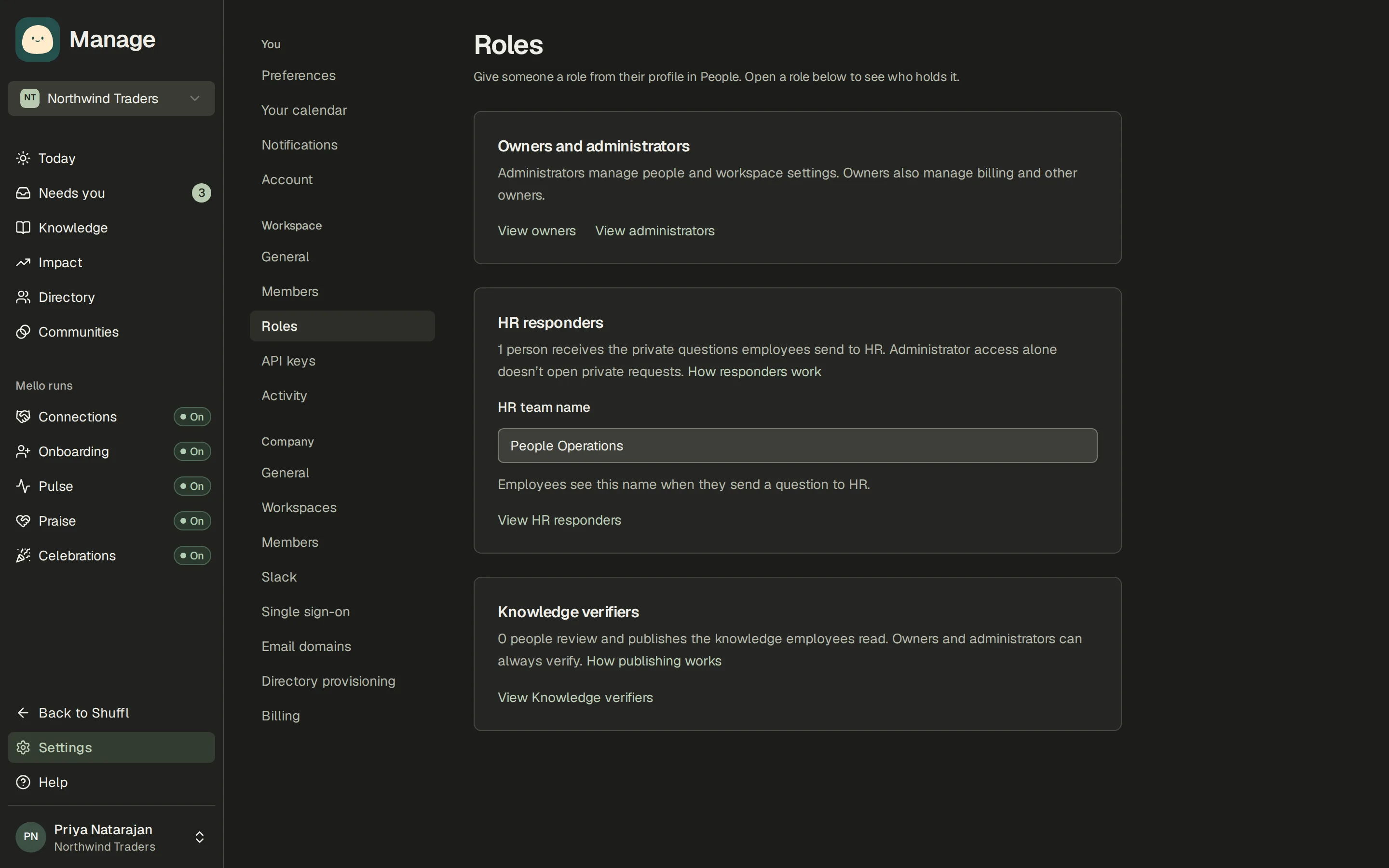
Company owners and administrators can manage every workspace in their company. Workspace administrators manage only their own workspace. HR responders receive employee requests; the HR team name here is what employees see when Mello offers to bring HR in. Knowledge verifiers review and publish sources without being administrators. Turn a role on or off under Roles on a person’s details sheet in People; this page lists who holds each one.
Domains, single sign-on and API keys
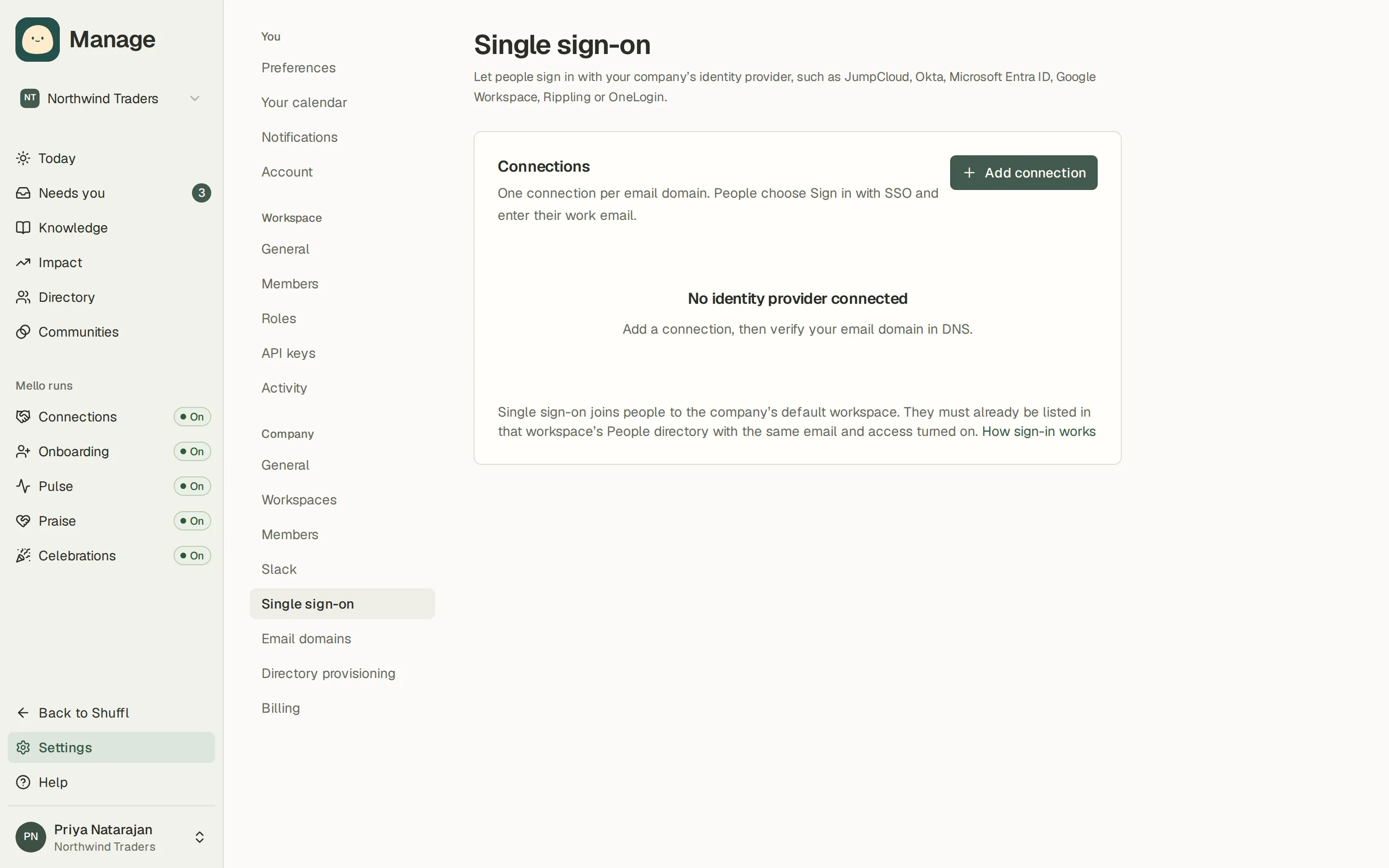
Company settings holds Email domains and Single sign-on, in the Company group of Settings. Workspace settings keeps API keys for your own agent or scripts. A key works in one workspace only, even when its owner administers the whole company.
Activity log
Activity is the workspace log: what changed, who changed it and when, for settings, roles, access, sources and programs. It is the place to look when something is not as you left it.