
Introduce coworkers with Connections
Introduce coworkers in Slack on a schedule, choose who gets matched, and see how rounds went.
Workspace administrators
Read as MarkdownAll guides as textAgent documentation index
Have your agent do thisPaste the prompt into Claude Code, Cursor or another agent. It follows this guide over MCP and asks before it changes anything others will see.Show the promptHide the prompt
Help me with "Introduce coworkers with Connections" in my Shuffl workspace.

1. Read the guide: https://shuffl-rebuild.vercel.app/docs/markdown/connections
2. Add Shuffl's MCP server: https://shuffl-rebuild.vercel.app/api/mcp
   Claude Code: claude mcp add --transport http shuffl https://shuffl-rebuild.vercel.app/api/mcp
   When the browser opens, choose my workspace and allow the access the guide needs.
3. Work through the steps in order: Create an introduction program. Do what you can over MCP and tell me which steps only I can do in the browser or in Slack.

Show me what you will change and who it affects, and wait for my yes before publishing, inviting or sending anything.
App links open your signed-in workspace. Check the selected workspace before making changes.
Create an introduction program
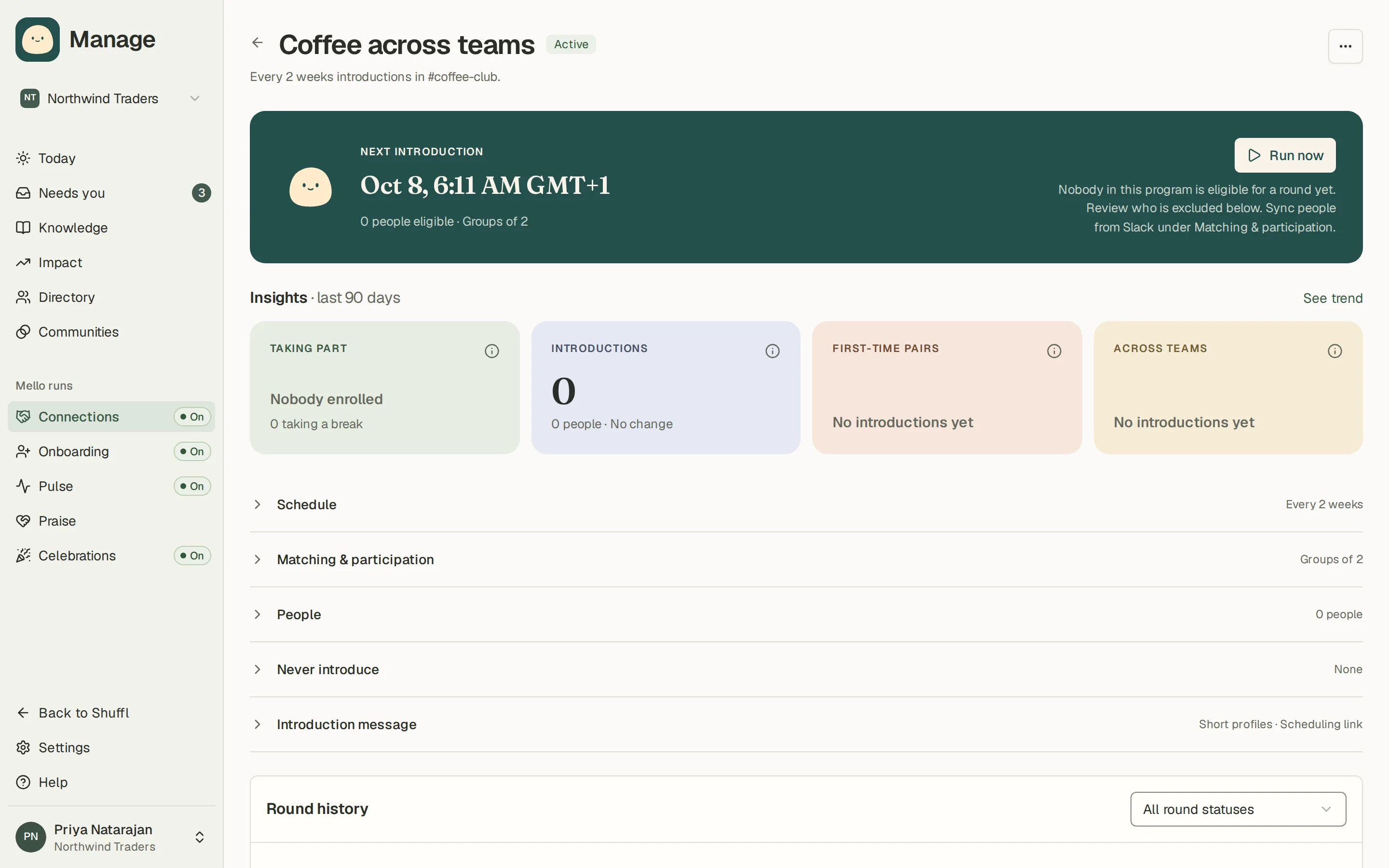
- In Manage, open Connections and choose New program. Start from a template such as Cross-team coffee, Meet someone new, Lunch groups or Leaders host small groups, or ask Mello in Chat to draft one from a sentence.
- Pick the Slack channel whose members take part. Public channels are listed; for a private one, invite Shuffl first. Active members with Shuffl access take part, except bots, people who left the channel and people taking a break.
- Choose the matching, group size and schedule, then write the introduction. The preview shows the message as it will look in Slack.
- Choose Start program to schedule the first round, or Save draft. Starting sends nothing right away.
Connections needs the Shuffl app in Slack. Introductions go out as Slack group messages; nothing is sent from the web.
Choose who gets matched
Prioritize new connections puts together people who have not met through Shuffl yet. Connect across teams or departments prefers people from different parts of the company. Hosted puts one host in each group to arrange the meeting.
Groups hold 2 to 8 people, with an optional extra person so nobody is left out. Keep coworkers apart can avoid, or never allow, groups of managers and their direct reports, teammates or people in the same department.
On the program page, People lets you pause or resume one person, and Never introduce keeps two people out of the same group in every program.
Set the schedule and review rounds
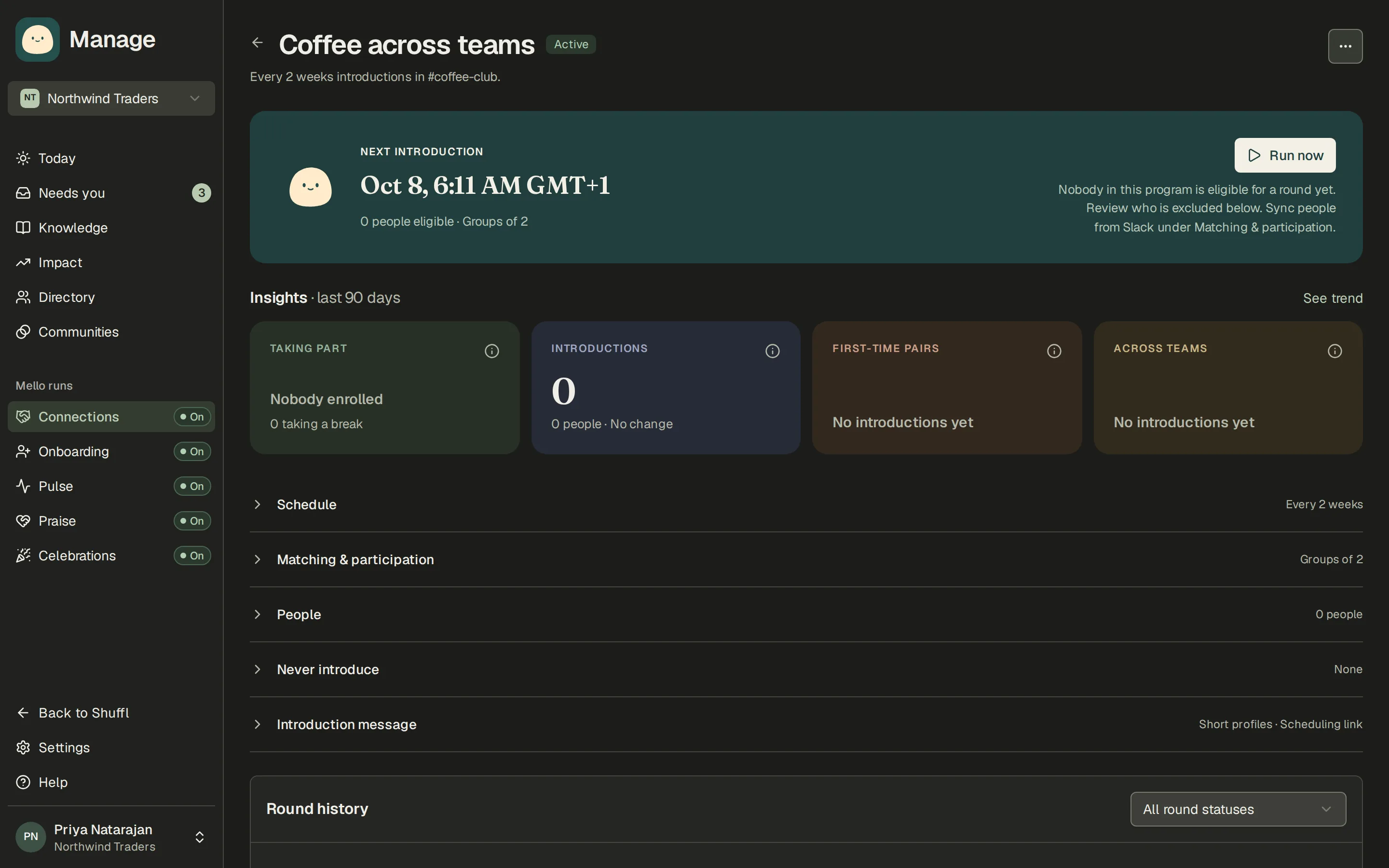
A program runs every few days, weeks or months in the time zone you choose. Monthly schedules can repeat on the same date, the same weekday position or the last weekday. The program page shows the next introduction.
Preview groups shows a possible arrangement before a round; Try another arrangement reshuffles it. Run now starts a round by hand. Round history shows each group and whether its message was delivered, with Retry known failures.
Insights counts who is taking part, introductions made, first-time pairs and introductions across teams, by week and per program.
Read preserved historical rounds
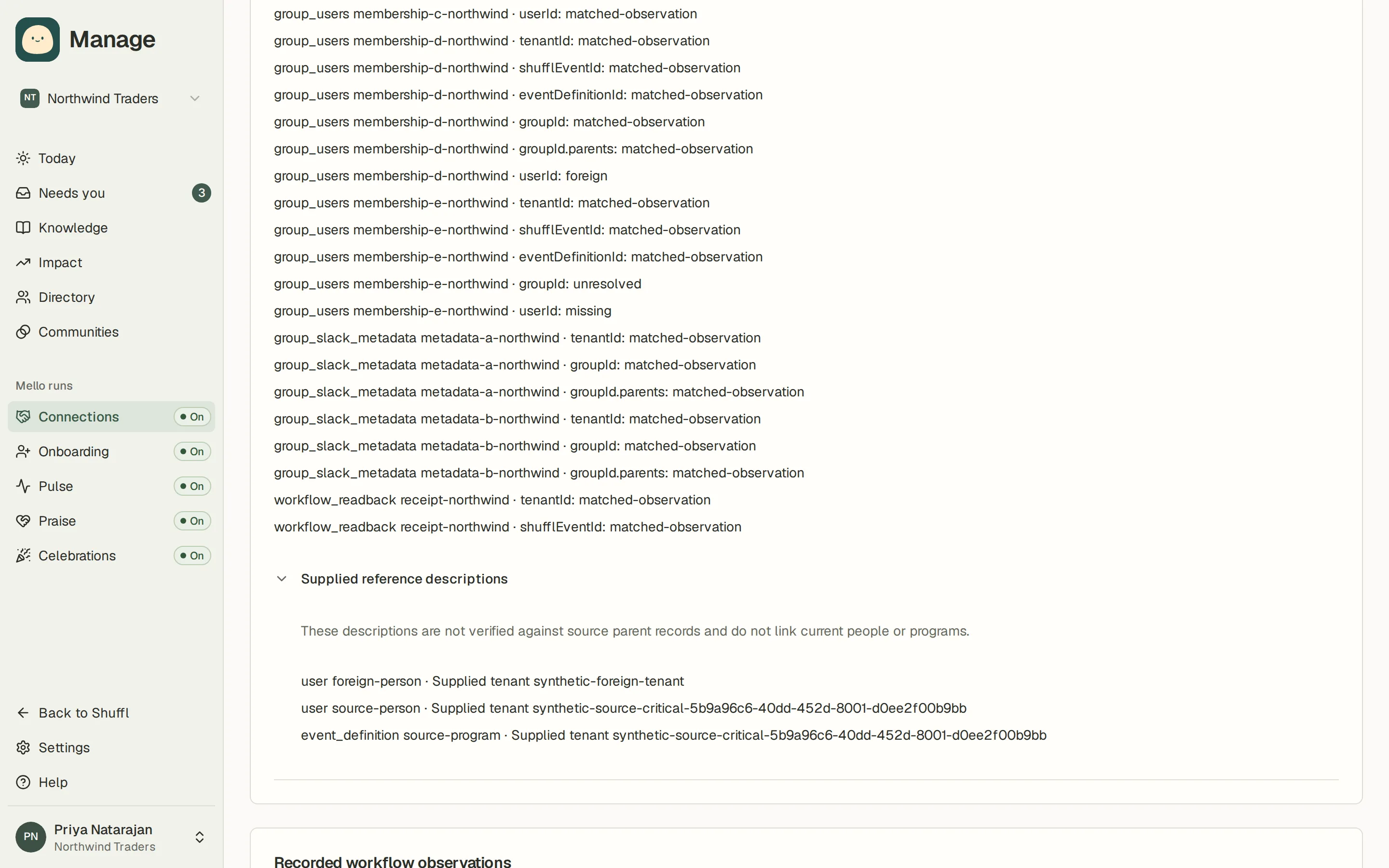
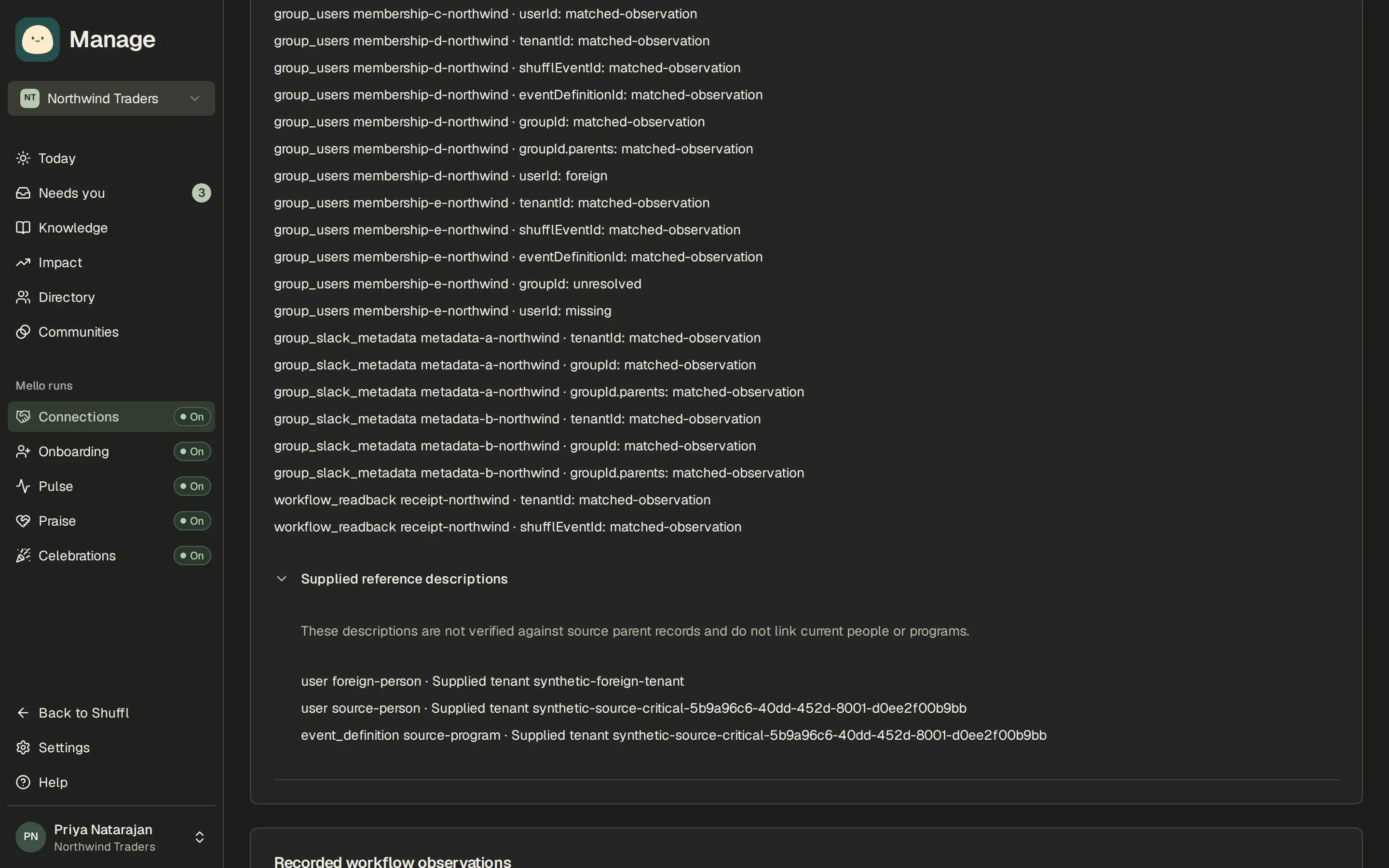
Workspace administrators can open Historical rounds in Connections to review records preserved from the previous Shuffl. Each round keeps its recorded groups and membership rows, including repeated membership records and unresolved group references.
Recorded message flags and source dates do not establish delivery, cancellation or a final outcome. Unknown values remain explicit. Source people stay unlinked until their connection to a current person has been proven; historical observations do not affect current participation or matching.
What employees see
An introduction arrives as a Slack group message that mentions everyone in the group, with a line about each person from their profile and, when calendars are connected, a link to pick a time. Someone without a bio gets a private nudge to add one.
People can take a break from a program on the Home tab of the Shuffl app in Slack: until they are back from out of office, for a round or two, for a month, or until they resume. A break keeps them out of new introductions and nobody else is told.
ShufflAPP
ShufflAPP
ShufflAPP
Onboard new hires
Onboarding is its own program type in Manage, with a buddy invitation, an introduction and a check-in for each new hire. It has its own guide.