
Ask Mello
Ask about work in Chat or Slack, read the sources behind an answer, and get help from HR without leaving the conversation.
Everyone using Shuffl
Read as MarkdownAll guides as textAgent documentation index
Have your agent do thisPaste the prompt into Claude Code, Cursor or another agent. It follows this guide over MCP and asks before it changes anything others will see.Show the promptHide the prompt
Help me with "Ask Mello" in my Shuffl workspace.

1. Read the guide: https://shuffl-rebuild.vercel.app/docs/markdown/ask-mello
2. Add Shuffl's MCP server: https://shuffl-rebuild.vercel.app/api/mcp
   Claude Code: claude mcp add --transport http shuffl https://shuffl-rebuild.vercel.app/api/mcp
   When the browser opens, choose my workspace and allow the access the guide needs.
3. Work through the steps in order: Ask a question. Do what you can over MCP and tell me which steps only I can do in the browser or in Slack.

Show me what you will change and who it affects, and wait for my yes before publishing, inviting or sending anything.
App links open your signed-in workspace. Check the selected workspace before making changes.
Ask a question
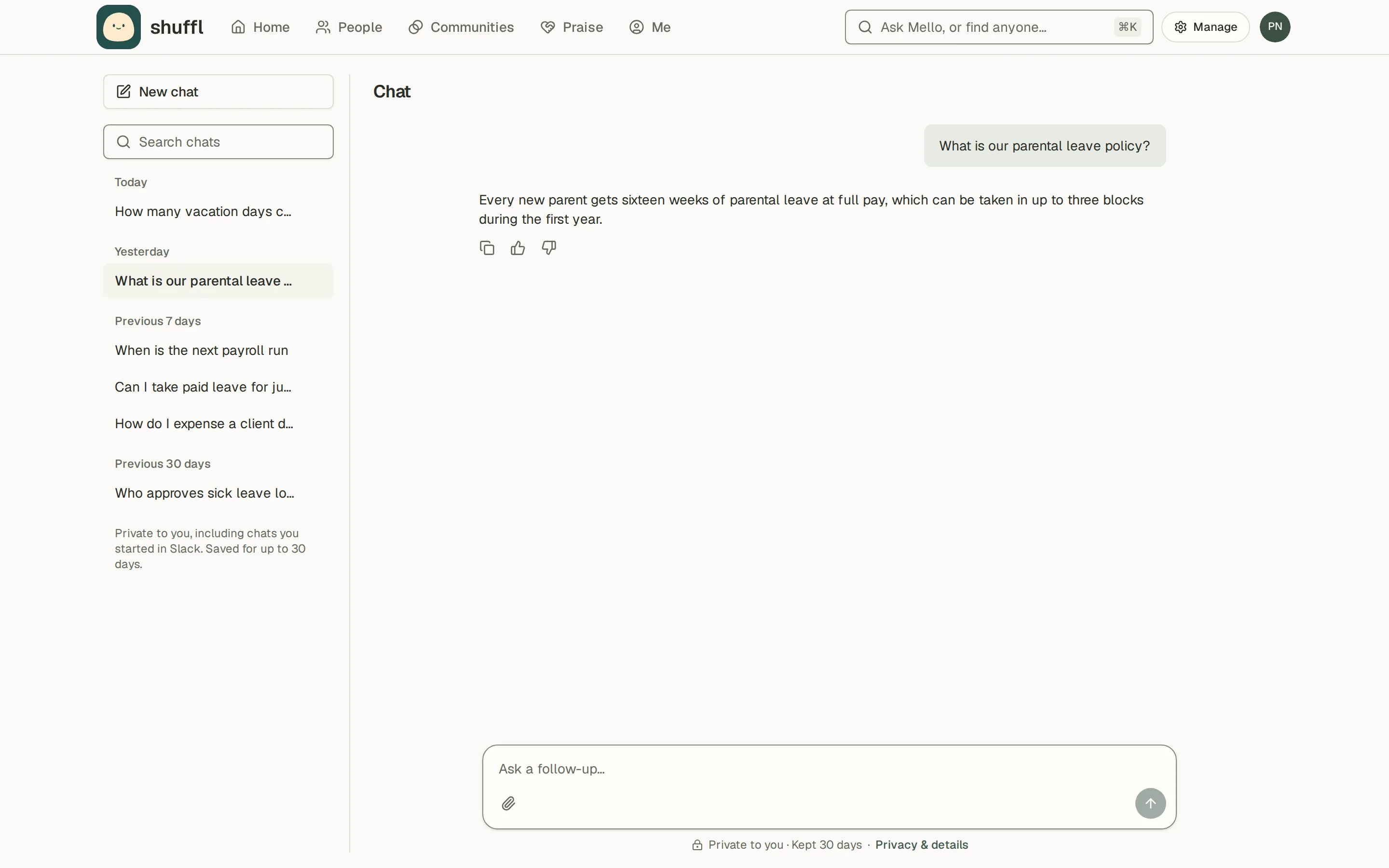
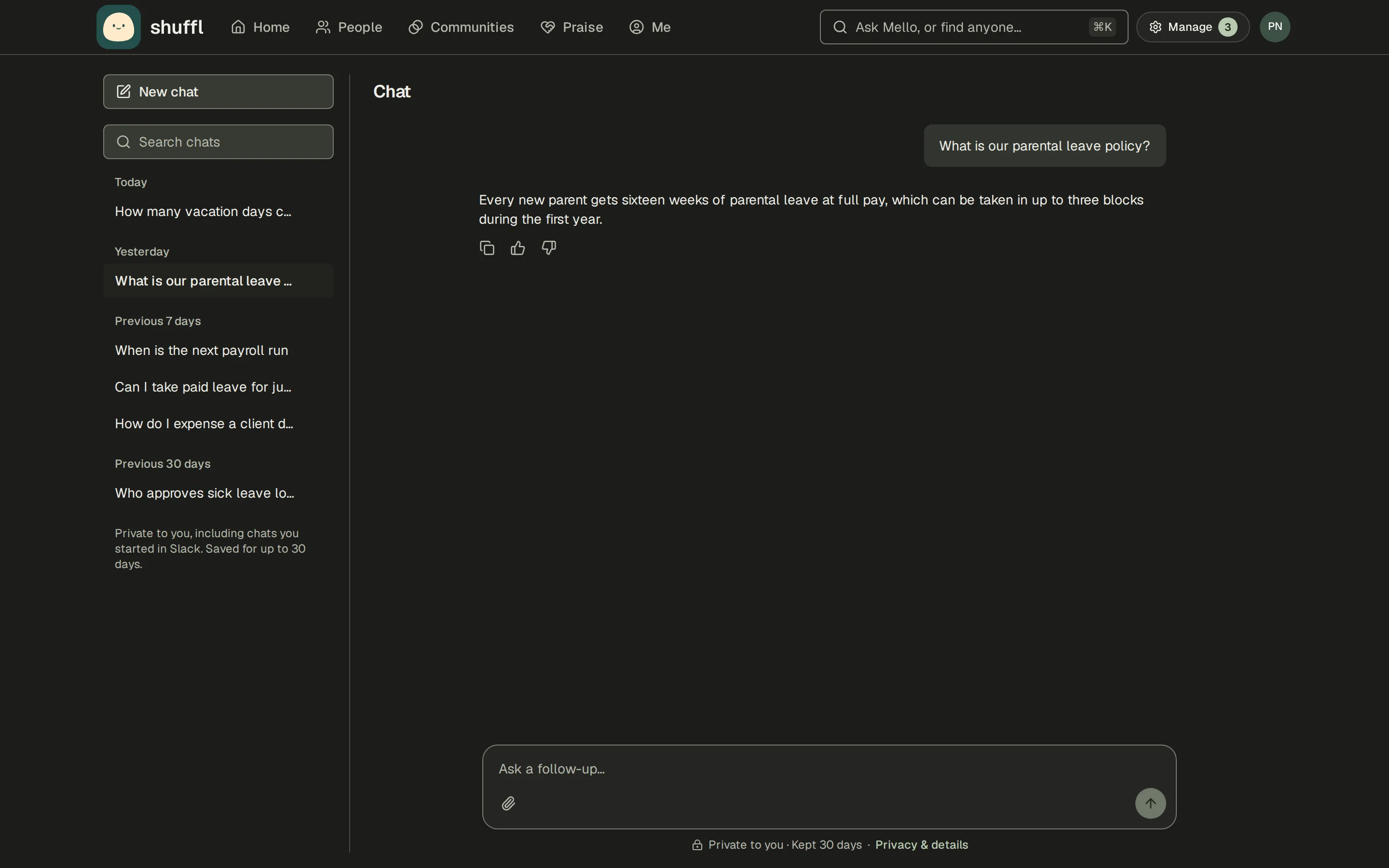
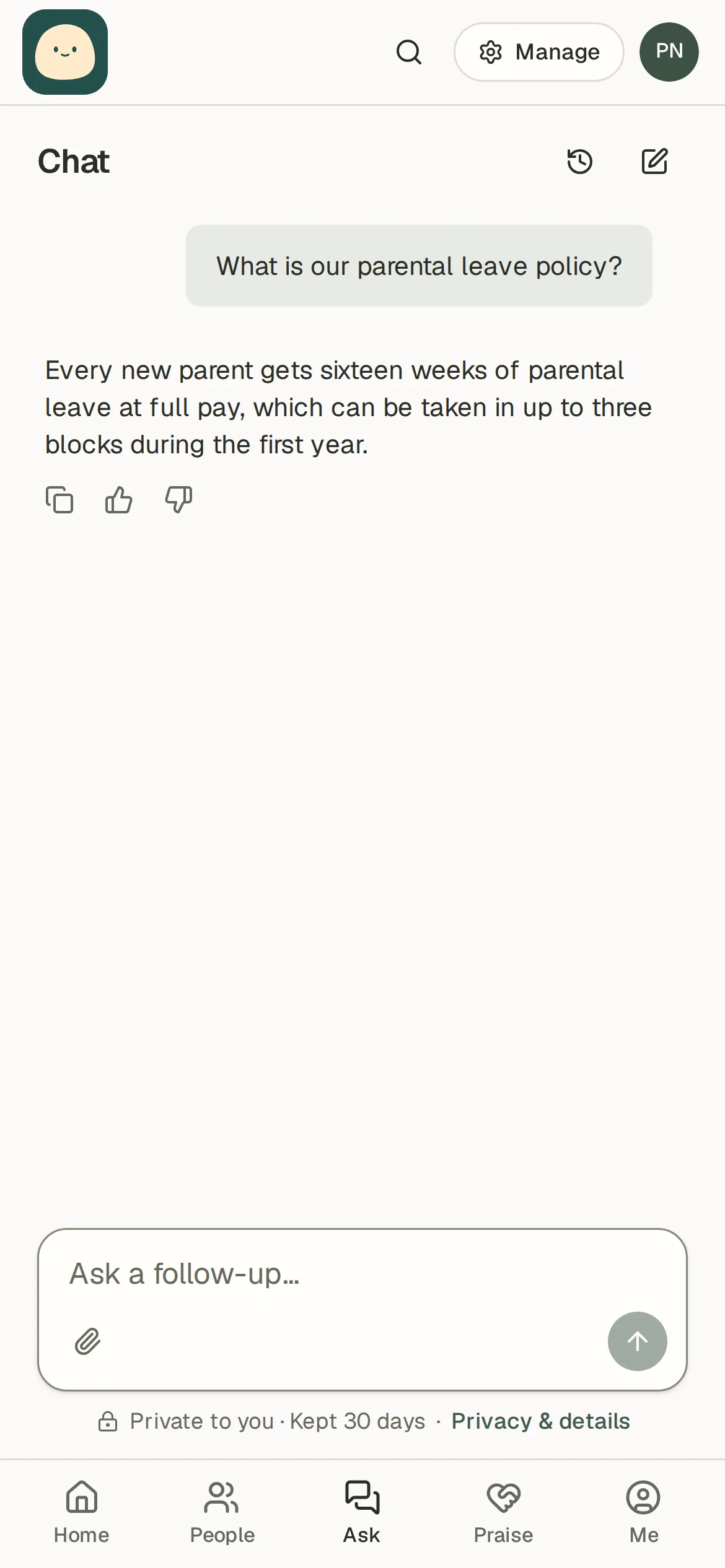
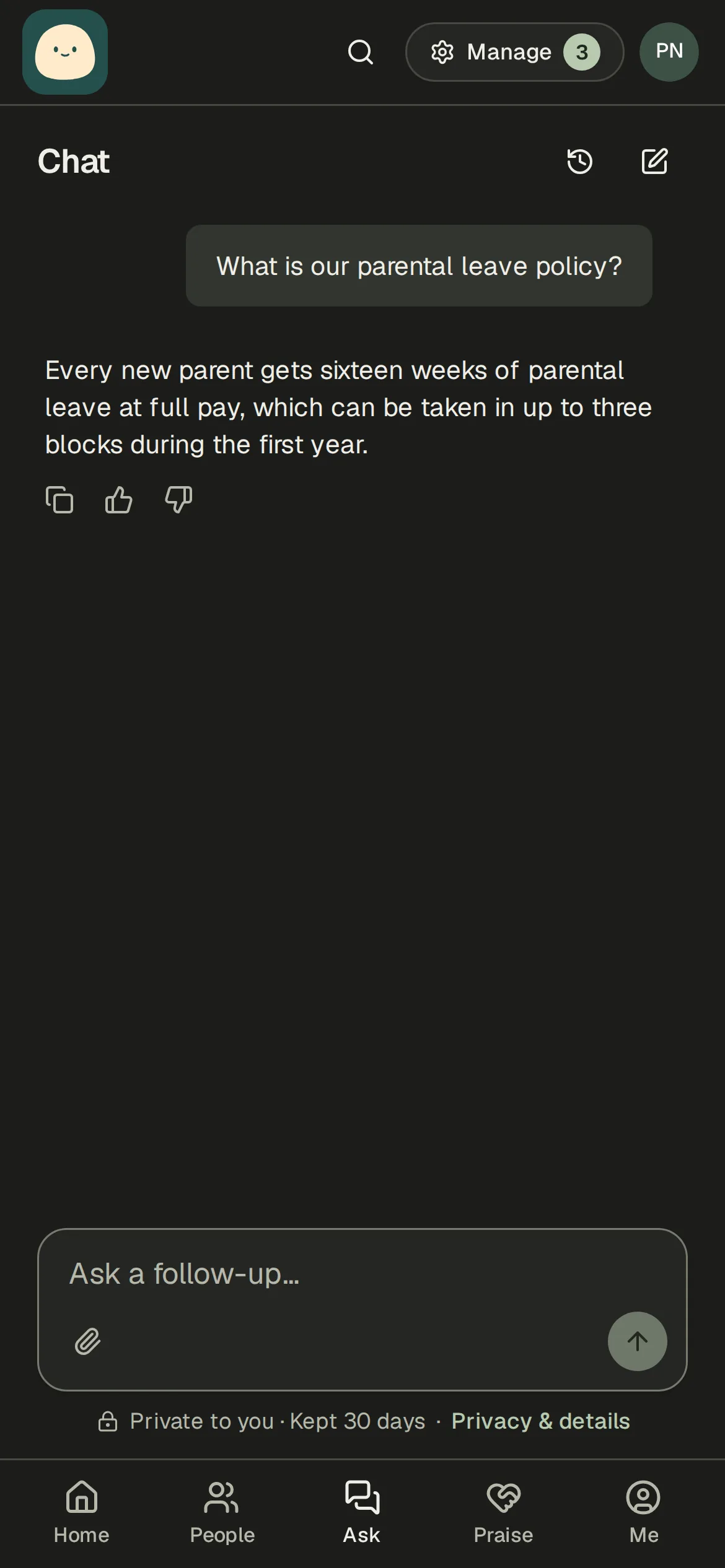
- On the web, type in the box at the top of Home or open Chat. In Slack, send a direct message to Shuffl. On a phone, Ask is one of the bottom tabs.
- While Mello works it shows what it is doing, such as Searching company knowledge or Checking the People directory. In Chat the answer appears as it is written. Choose Stop answer to stop it.
- When a question could mean more than one thing, Mello asks which one you mean and offers two to four choices to tap, on the web and in Slack. Tap one to answer, or type your own reply.
- Open Supporting sources to see the passages it relied on; a citation opens the published source.
- Ask a follow-up in the same chat. If you send another message while Mello is still writing, it waits in a queue; choose Send now to interrupt with it instead.
- Attach a PDF, Word, PowerPoint, Markdown or text file to ask about it. In Slack, an administrator may first need to reconnect Slack with file access.
Mello is Shuffl’s assistant. Ask it about time off, benefits, expenses, policies or who is who. It answers from the Knowledge your company published for you and from People, and cites where each answer came from.
What Mello can and cannot answer
Mello uses only sources published to an audience that includes you, while they are effective and before their review date. If nothing published covers your question, it says so and offers to bring in HR.
Mello also knows who is asking, from your own record in People: your employment type, location, job title, department, teams, manager, start date and how long you have been with the company, and your time zone. Policies often differ by these, so Mello answers the part that applies to you instead of listing every case. It uses your record only in your own chats, never in a shared channel. A fact that is not recorded in People is simply missing, so keep People up to date.
Mello reads your own time-off balances only when your company connected an HR system that reports them: BambooHR, Rippling, HiBob or Deel. Without one it does not guess a balance. It does not book leave; it prepares an HR request with the dates.
Questions about Shuffl itself, such as who can see your Pulse answers or how to turn off a reminder, Mello answers from these guides and says so. They describe how Shuffl works, never your company’s policies.
In a shared channel, Mello answers only from Knowledge published to everyone. Anything about you personally is answered in a direct message.
Get help from HR
When a person needs to help, Mello prepares a short message for HR and shows you who would receive it. Edit it if you like; nothing is sent until you choose Share with HR on the web or Send to HR in Slack. HR gets that message, never your whole conversation. Replies arrive in the same chat, and Your HR requests lists everything open.
Let Mello do things for you
Mello can also act for you, within your role: join a community, say who you know, set your profile visibility, or, for administrators, aim a Pulse question at a team or turn on a program. Anything that changes something appears first as a Prepared action card and runs only when you choose Run.
Your chat history and feedback
Your chats lists everything you asked, grouped by day. Rename gives a chat a name only you see; Delete removes it. Search your chats searches web chats: words in your questions and answers first, then chats about a related topic.
A chat you started in Slack shows in the web list too, once your Slack account is linked to your profile. Opening it checks your current access and reads its messages from Slack, without saving the transcript in this browser. Messages appear as plain text with readable link labels and paragraph breaks. Edited messages show their current text; missing or inaccessible messages show as unavailable. It is read-only here: Open in Slack to continue it.
Under each answer, Good answer and Bad answer send only your rating, your optional note and which sources were used to your workspace administrators. Your question and the answer stay private.
Who can read your chats
Your manager, HR and administrators cannot read your chats, and Shuffl deletes them after 30 days. HR sees only what you share. Slack keeps its own copy of direct messages under your workspace’s retention settings.