Onboard new hires
Give every new hire a buddy, an introduction, check-ins through their first 90 days and nudges for their manager.
Workspace administrators, new hires and buddies
Read as MarkdownAll guides as textAgent documentation index
Have your agent do thisPaste the prompt into Claude Code, Cursor or another agent. It follows this guide over MCP and asks before it changes anything others will see.Show the promptHide the prompt
Help me with "Onboard new hires" in my Shuffl workspace.

1. Read the guide: https://shuffl-rebuild.vercel.app/docs/markdown/onboarding
2. Add Shuffl's MCP server: https://shuffl-rebuild.vercel.app/api/mcp
   Claude Code: claude mcp add --transport http shuffl https://shuffl-rebuild.vercel.app/api/mcp
   When the browser opens, choose my workspace and allow the access the guide needs.
3. Work through the steps in order: Create an onboarding program; Enroll hires and approve their messages. Do what you can over MCP and tell me which steps only I can do in the browser or in Slack.

Show me what you will change and who it affects, and wait for my yes before publishing, inviting or sending anything.
App links open your signed-in workspace. Check the selected workspace before making changes.
Create an onboarding program
- In Manage, open Onboarding and choose New onboarding program. Start from a template such as New hire onboarding, Remote new hires, New managers or Interns and early career, or ask Mello in Chat to draft one.
- Name the program, choose the accountable HR responder, the local send time and the default time zone. Set how many days before or after the start date each message goes out.
- Edit the three messages: a buddy invitation to the buddy, an introduction to the hire and buddy together, and a help check-in to the hire. Use {{hire}} and {{buddy}}; the preview shows the result.
- Choose Start program, or Save draft to finish later. Programs shows each program with its state, and Insights shows hires in progress, buddy acceptance and check-ins answered.
Enroll hires and approve their messages
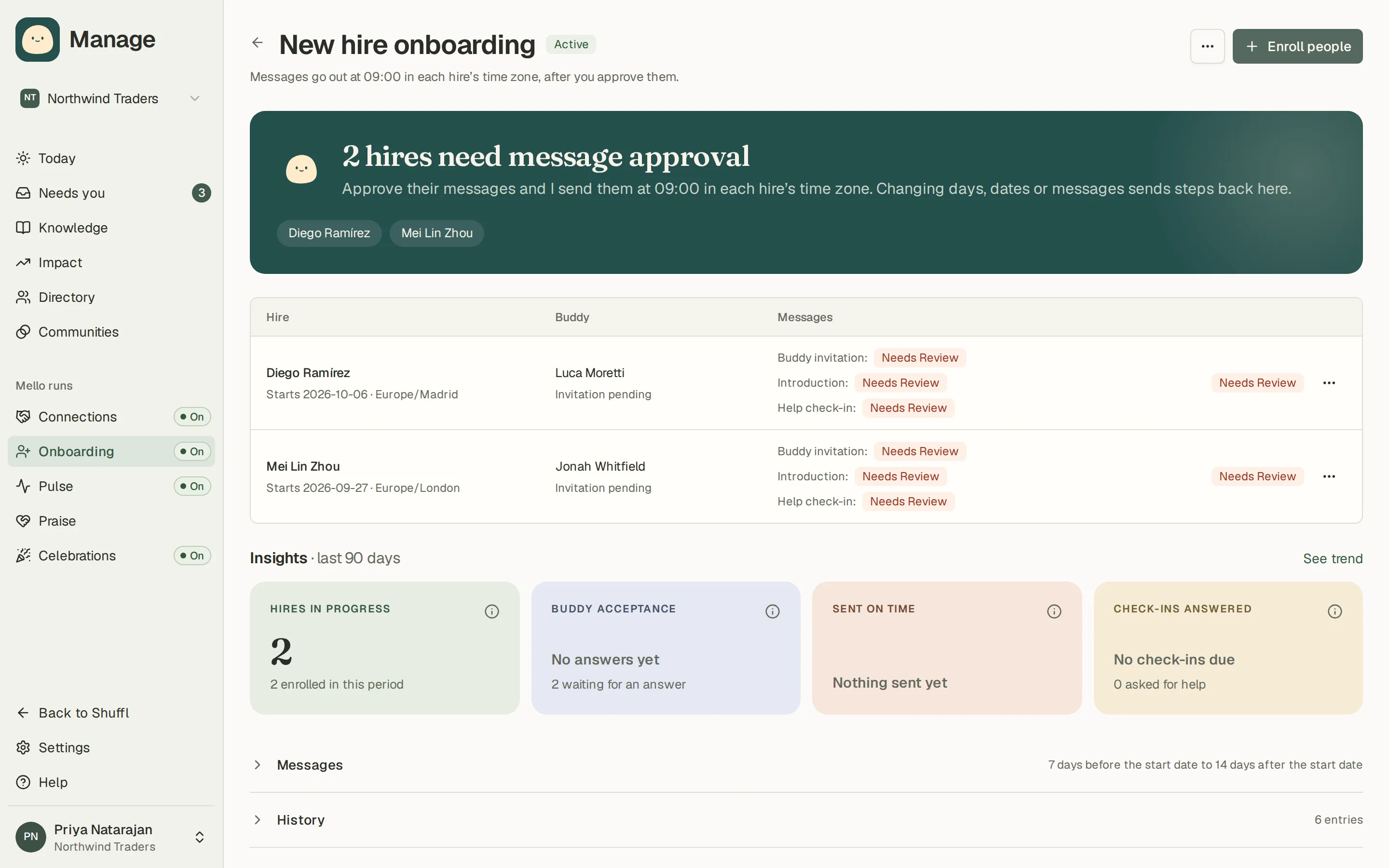
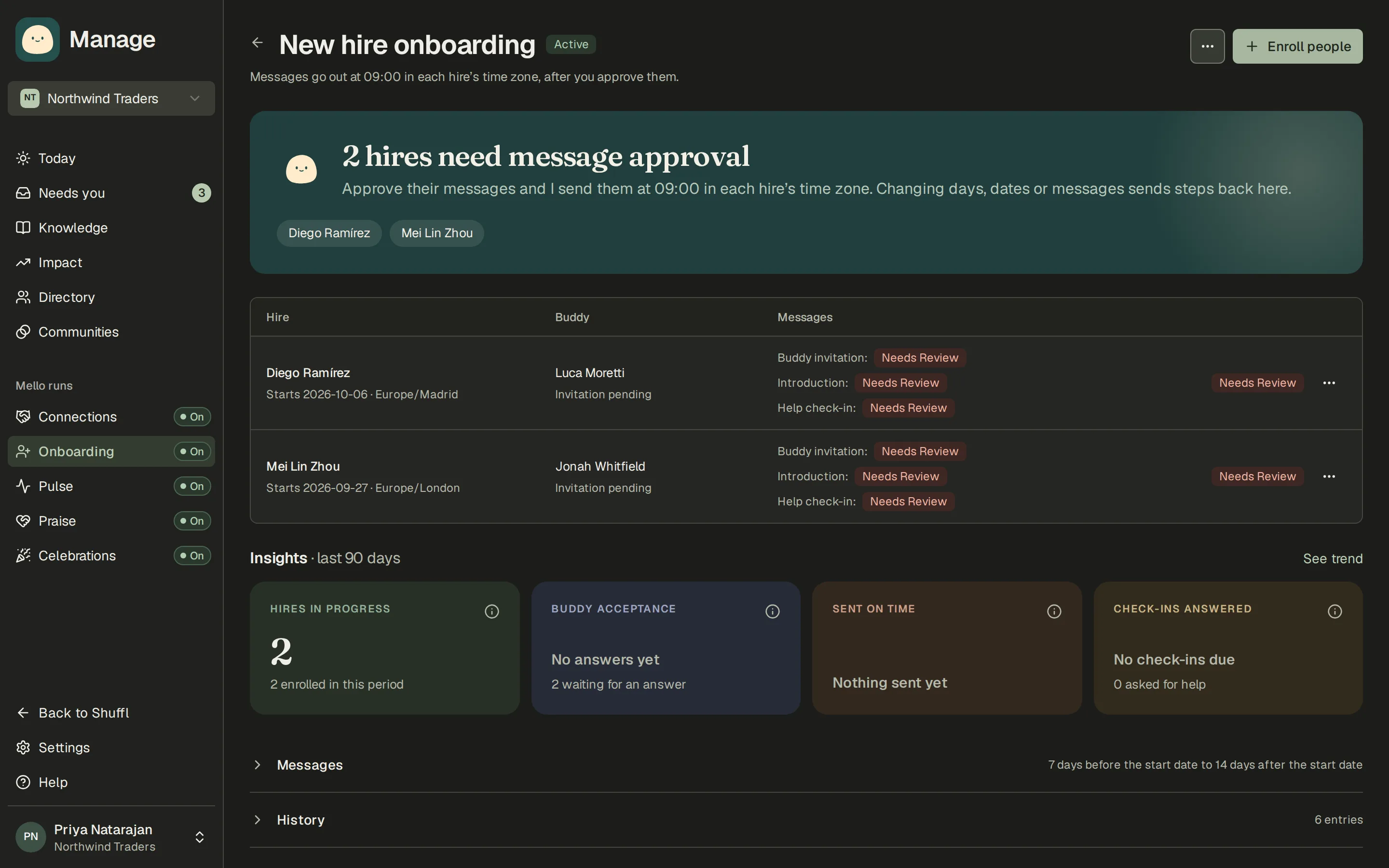
- Choose Enroll people and pick hires from People, or upload a CSV with their emails, start dates, time zones and buddies. You can also start onboarding from a person’s details sheet in People.
- Choose a buddy for each hire, or leave it empty and let the hire ask someone. The buddy accepts or declines in Shuffl.
- Choose Review and approve messages. Read each message with its date, tick that you reviewed them exactly as shown, and approve. Changing a date, a buddy or a message sends that hire back for approval.
- Messages go out in the hire’s own time zone, in Slack. A hire or buddy without a linked Slack account waits until they have one.
Buddies and check-ins
A new hire sees Your onboarding on Home. If no buddy was chosen, Find me a buddy asks Mello to suggest coworkers who fit, and the hire can ask one of them. The coworker gets the ask in Slack and answers Say yes or Not now in Shuffl.
A buddy who is invited sees Be {hire}’s onboarding buddy? with Accept and Decline. Buddies appear on the hire’s profile and on Home under New hires, and both can use Schedule time to book a first call.
At the check-in the hire answers All good or I need help. I need help opens a reviewed message to HR, like any other HR request, so the accountable responder hears about it.
ShufflAPP
ShufflAPP
ShufflAPP
The first 90 days
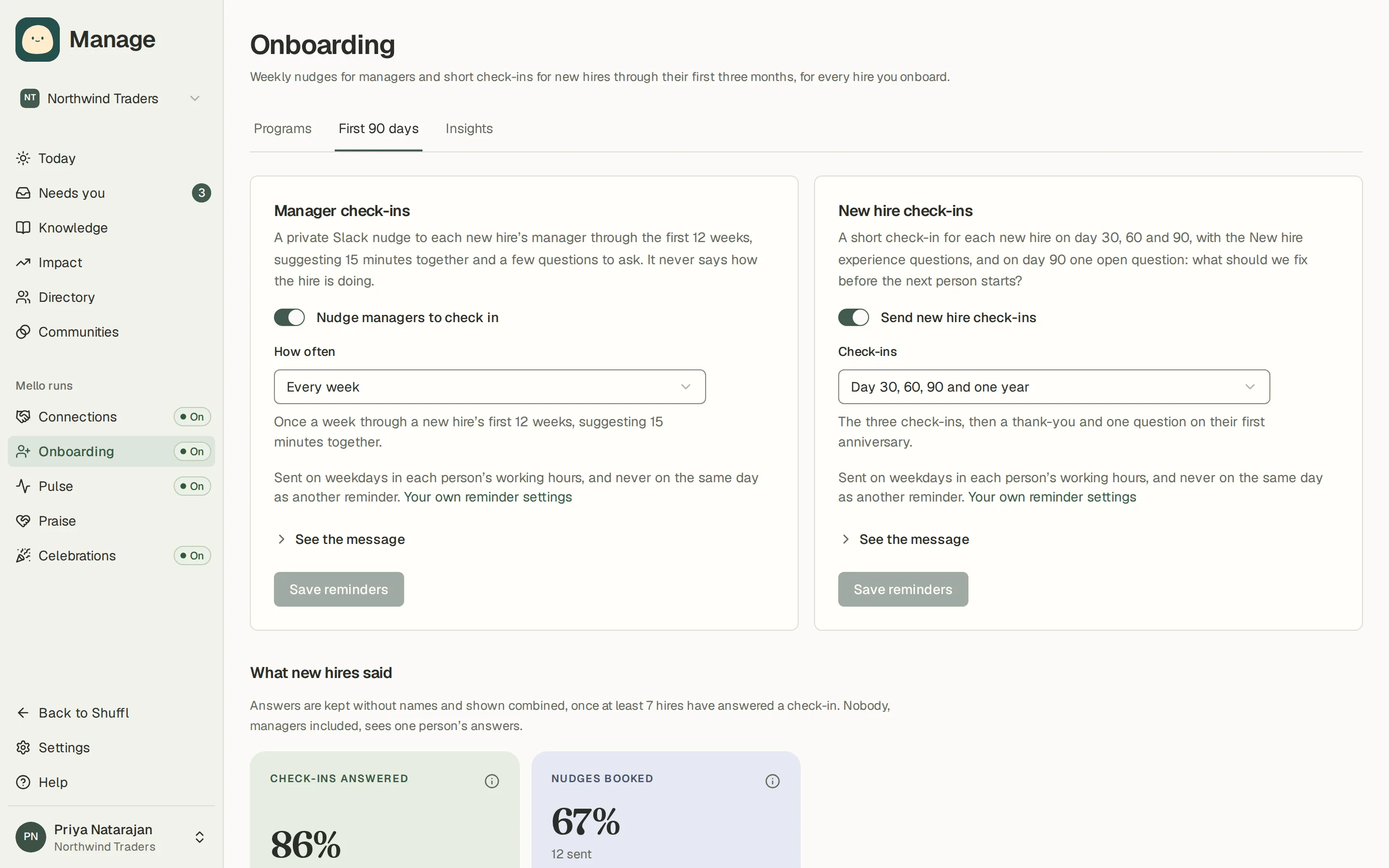
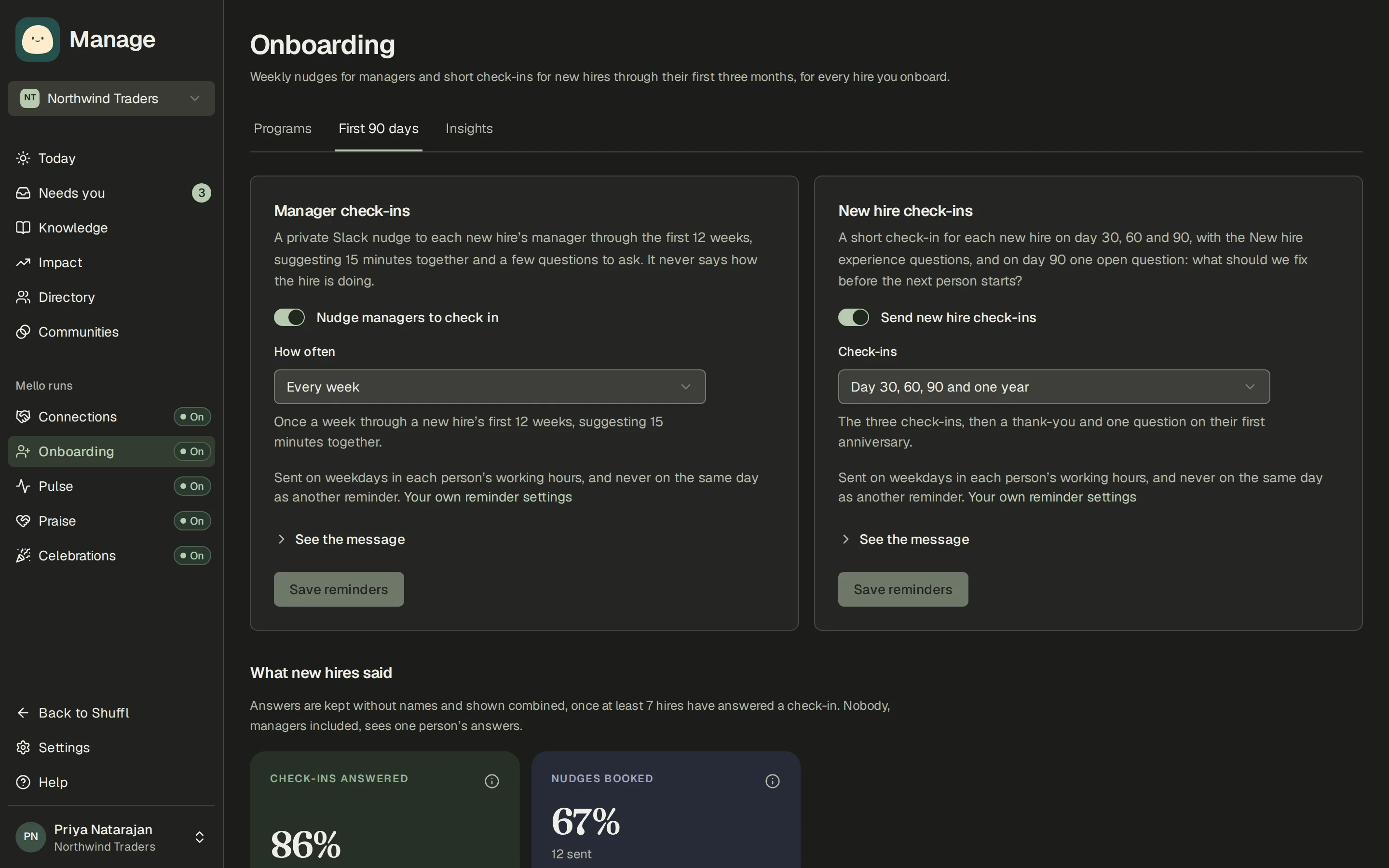
Every hire you approve in an onboarding program gets a first 90 days on top of the program’s own messages. Open Onboarding in Manage and choose First 90 days to change or turn off either part.
Manager check-ins: the hire’s manager in People gets a private Slack nudge each week (or every other week) through the first 12 weeks, suggesting 15 minutes together and a few questions to ask. Find a time opens the times you’re both free, if they’ve connected a calendar. They can press Booked it, Skip this week or Stop these nudges.
New hire check-ins: on day 30, 60 and 90 the hire gets a short check-in with the New hire experience questions, and on day 90 one open question: what should we fix before the next person starts? With Day 30, 60, 90 and one year, they also get a thank-you and one question on their first anniversary. Answer opens the questions as a short form right in Slack. The same check-in is in Your onboarding too, for anyone who’d rather answer there or doesn’t use Slack.
What new hires said shows the share who agreed with each question, and the open answers, only once at least as many hires as your Pulse reporting floor (7 or more) have answered that check-in. Answers are stored without names or times, so nobody, managers included, can see one person’s answers. Each person can turn their own nudges or check-ins off in Settings, Notifications.
ShufflAPP
ShufflAPP
ShufflAPP