
Your profile
Fill in your profile, choose who sees what, and let coworkers find the right person to ask.
Everyone using Shuffl
Read as MarkdownAll guides as textAgent documentation index
Have your agent do thisPaste the prompt into Claude Code, Cursor or another agent. It follows this guide over MCP and asks before it changes anything others will see.Show the promptHide the prompt
Help me with "Your profile" in my Shuffl workspace.

1. Read the guide: https://shuffl-rebuild.vercel.app/docs/markdown/your-profile
2. Add Shuffl's MCP server: https://shuffl-rebuild.vercel.app/api/mcp
   Claude Code: claude mcp add --transport http shuffl https://shuffl-rebuild.vercel.app/api/mcp
   When the browser opens, choose my workspace and allow the access the guide needs.
3. Work through the steps in order: Fill in your profile. Do what you can over MCP and tell me which steps only I can do in the browser or in Slack.

Show me what you will change and who it affects, and wait for my yes before publishing, inviting or sending anything.
App links open your signed-in workspace. Check the selected workspace before making changes.
Fill in your profile
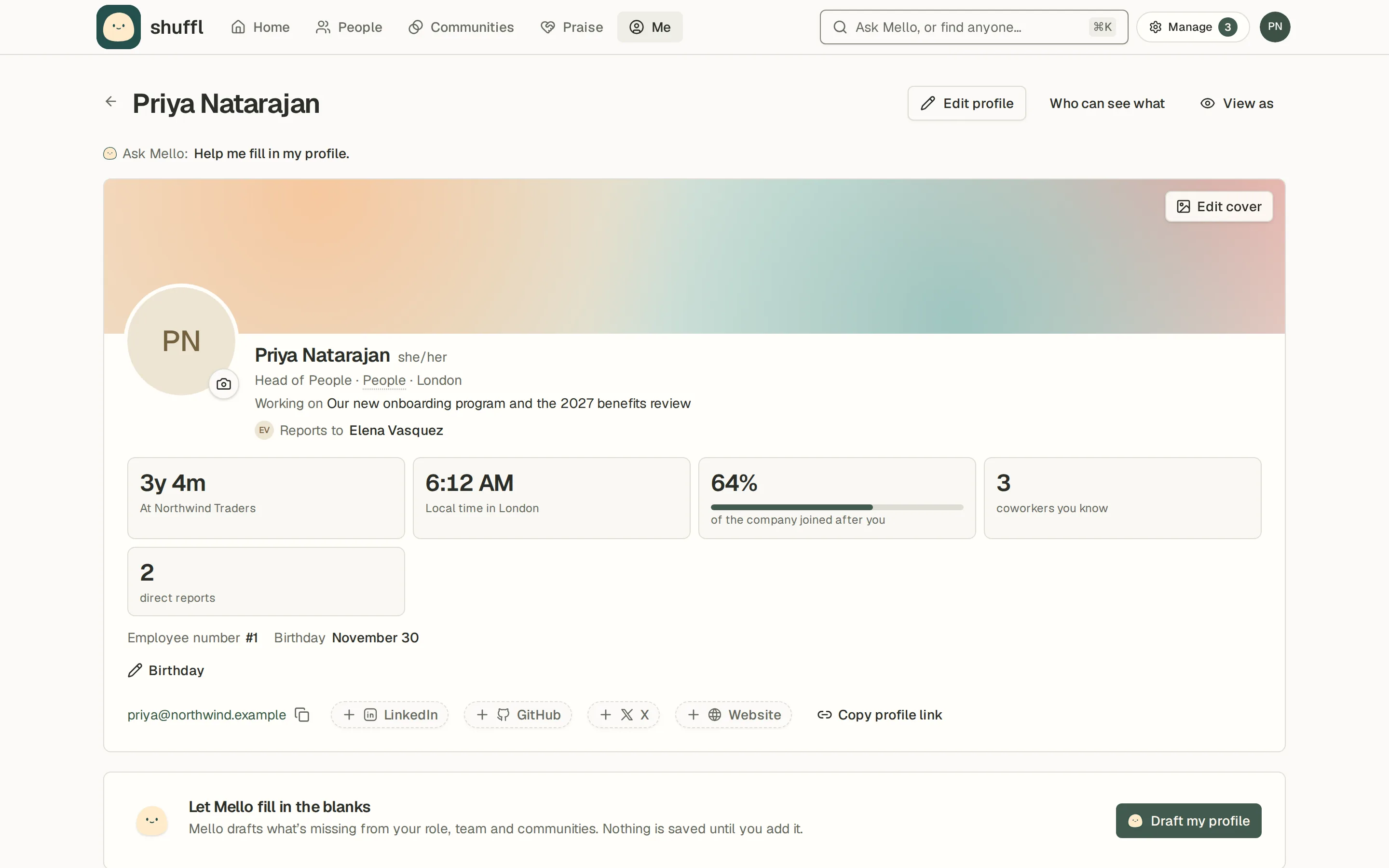
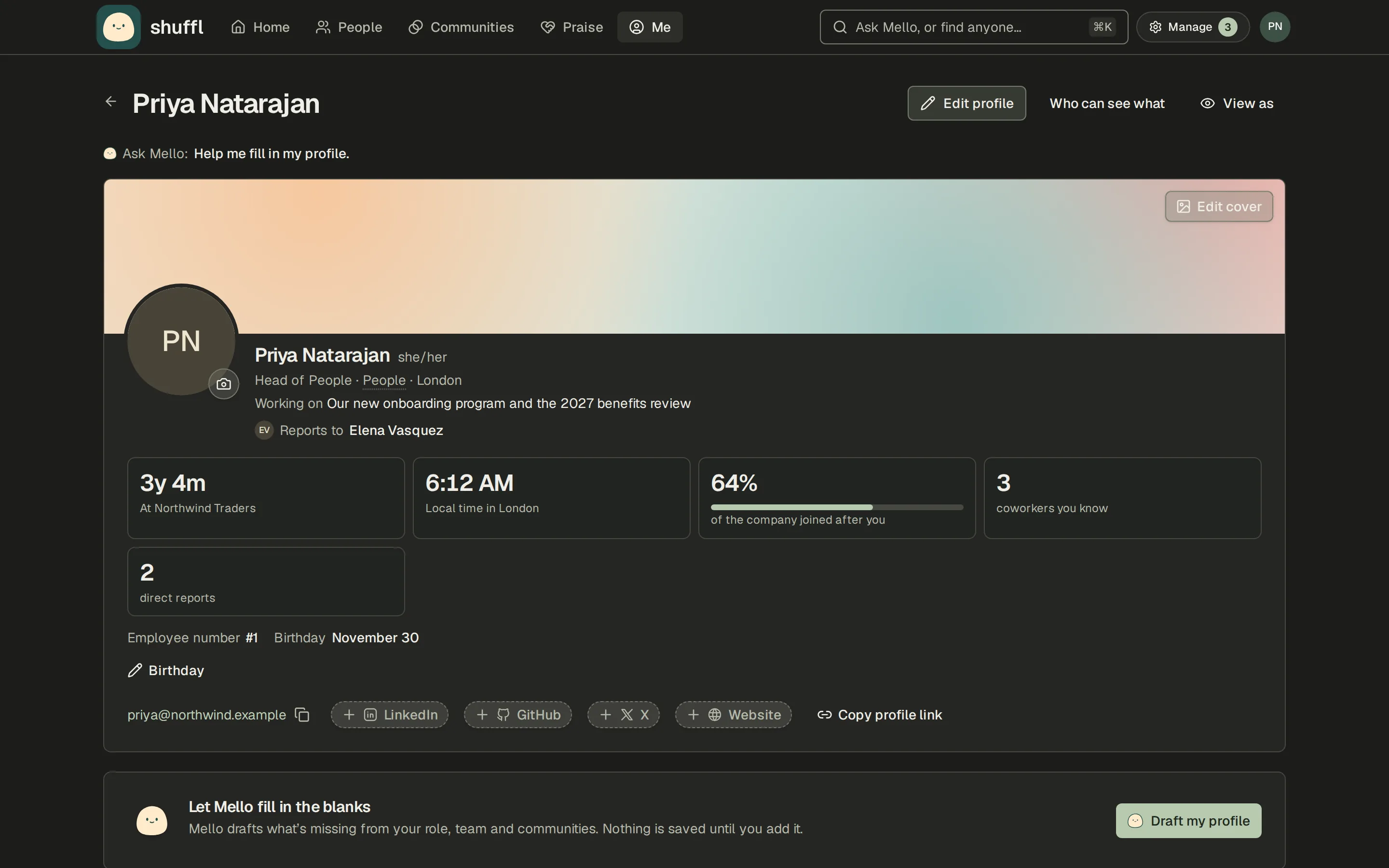
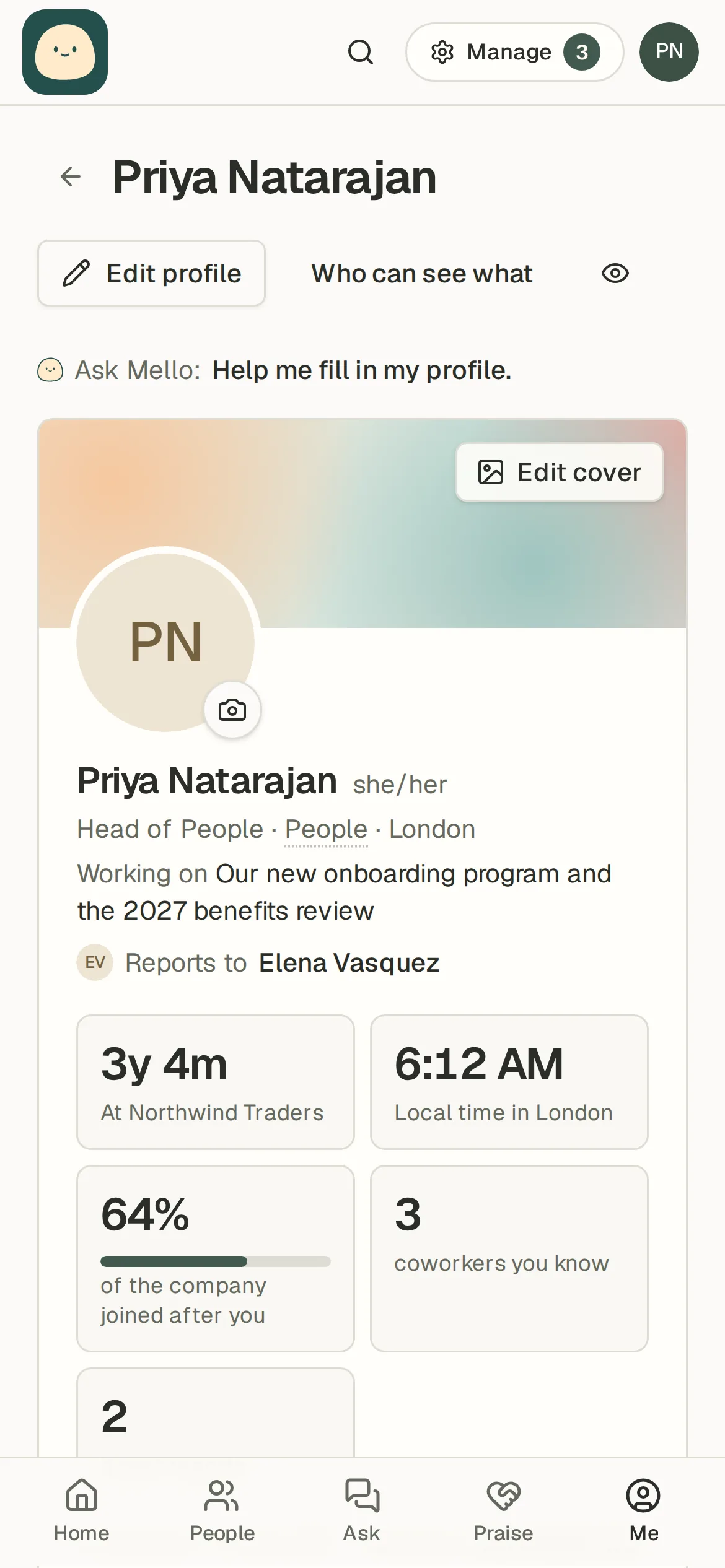
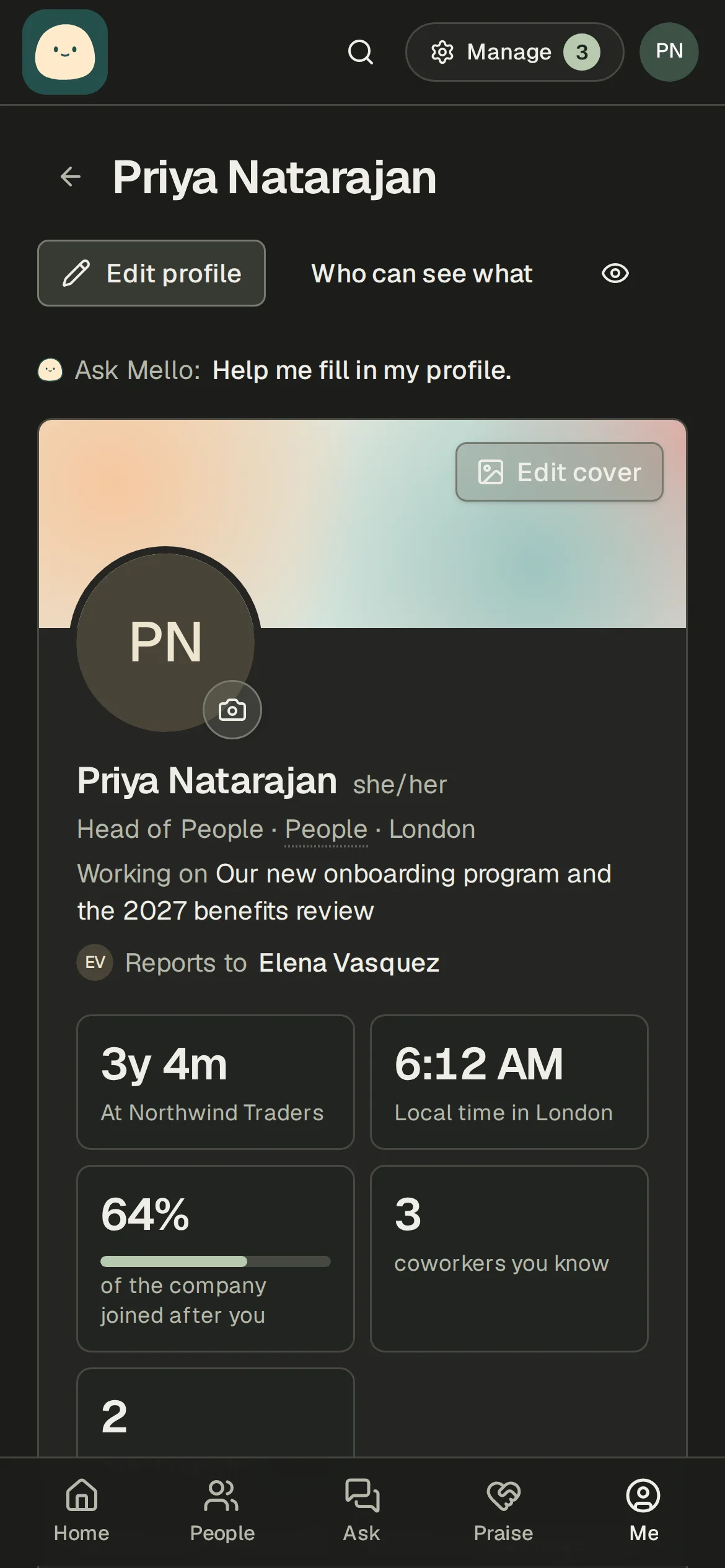
- Open Me and choose Edit profile. Add what you are working on, a short bio, up to twelve Ask me about topics, what you can help with, what you are looking for and your interests. Working on shows under your name; the rest sits together in About. These show in introductions and help coworkers find the right person: when someone asks Mello who knows about a topic, or types it in ⌘K, Mello names the people whose profiles match and says why. Only what you share with that person is used.
- Choose Draft my profile to let Mello suggest the empty parts from your title, team and work in Shuffl. Nothing is saved until you choose Add all or accept a suggestion.
- Add links, your location and pronouns. Under Job history, Add position records a title, a team or department and the dates; your current position comes from People and your manager keeps it up to date.
- Add your birthday as a month and day if you want a note on the day. Shuffl never stores the year.
Your photo and cover
Choose Change photo to upload a picture or Create with Mello to make one from a short description. The photo belongs to your account, so every workspace shows it.
Add cover uploads a banner for the top of your profile, or creates one with AI. Remove photo and Remove cover take them away.
Choose who sees what
Who can see what sets, for your bio, interests, job history, who you know, badges and onboarding buddy, whether Everyone, My team or Only me sees it. Hidden fields stay hidden in search and in Mello’s answers. View as shows your profile as a teammate or an outsider sees it.
Your name, title, team, manager and work email come from People and are visible to everyone in the workspace.
Who you know and who you want to meet
On a coworker’s profile, I know them and Want to meet are private notes to Shuffl. They shape who Mello suggests on Home and in People → Network, and they show up as People you both know on other profiles. Nobody is told you clicked.
Message on Slack opens a direct message. Schedule time proposes a 30-minute call from your calendars when both of you connected one under Settings → Your calendar, and otherwise opens your calendar to pick a time. Praise takes you to Slack to thank them where the team can see it.